

Seedance 2.5 Flash vs 2.5: Looping a Paper Bird Around a Blue Cutout
Compare Seedance 2.5 Flash vs 2.5 on a paper-bird loop using a locked camera, a fixed cutout, and a frame-by-frame seam check.
What's new on this page
- — Page published.
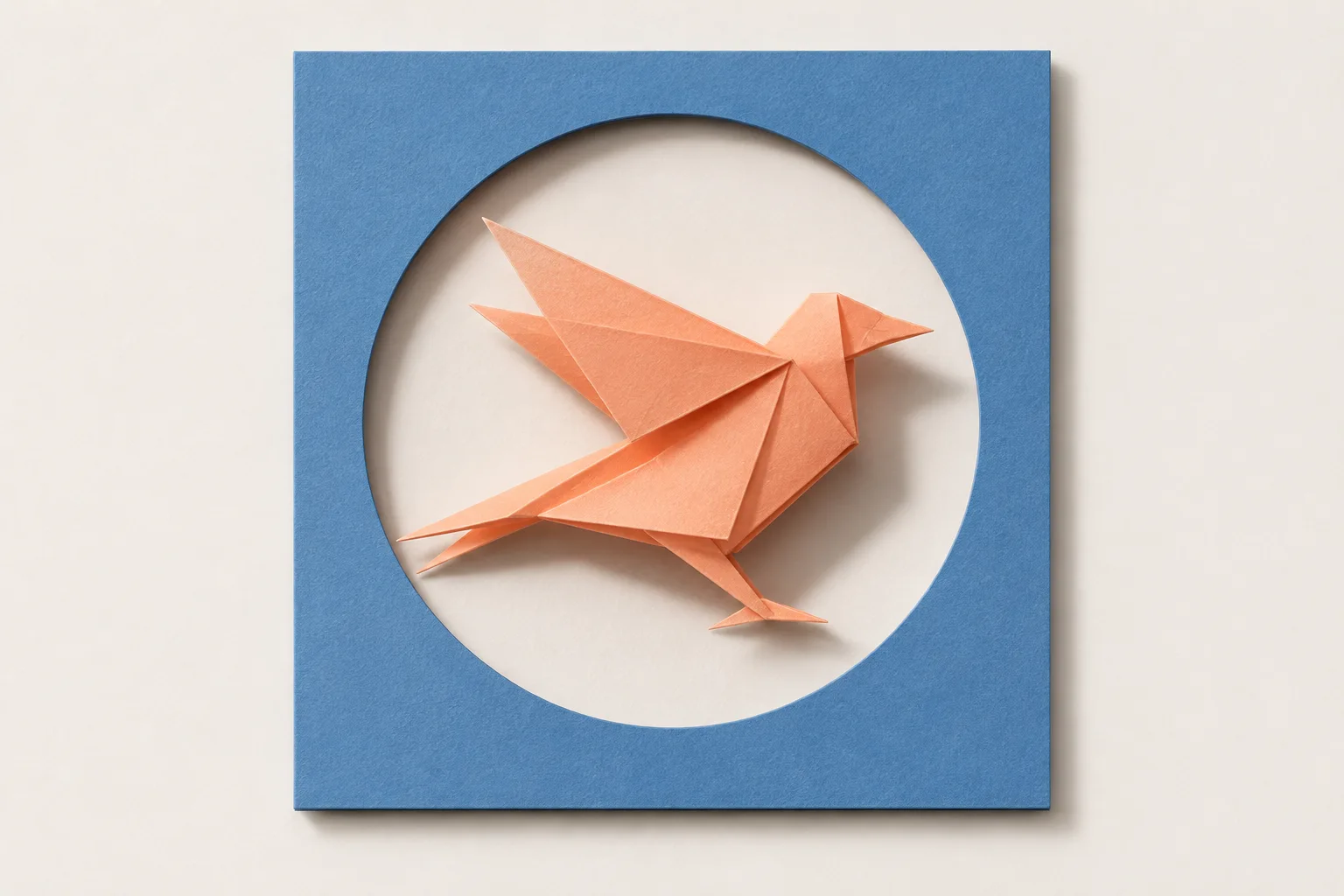
For a small product shoot, start a Seedance 2.5 Flash vs 2.5 comparison at 720p. Flash can make a complete trial at that size; pick standard if your handoff requires its built-in Draft-to-final workflow. The job is to loop an overhead clip of an original pastel folded-paper bird circling a shape cut from a matte blue sheet—without the camera drifting, the bird changing design, or its shadow jumping at the loop seam. Judge both versions against those requirements, not against a general impression of which looks more polished.
Set up a fair comparison
Start with the same source image, prompt, duration, resolution, and other available settings for each model. Keep the overhead composition fixed: the blue sheet fills the frame, the cut edge is clearly visible, and the bird circles the cutout without the camera panning, tilting, zooming, or reframing. Compare outputs at the same resolution before deciding which is suitable for delivery; a quick preview is not a fair basis for choosing between final versions.
The BytePlus Seedance 2.5 documentation says Flash supports 480p or 720p and does not have built-in Draft mode, while standard supports the Draft workflow. The series can generate clips up to 30 seconds long and supports image-to-video. In omni reference mode, the documented image limit is 10 for Flash and 30 for standard. These details matter if your source setup uses multiple reference images or you plan to use Draft as part of standard’s workflow. A quick Flash trial is not the same thing as standard Draft mode.
Use a prompt that protects the shot
Run this as a starting prompt, adapting the duration and settings to your intended comparison:
Overhead locked camera, fixed framing, no camera movement or zoom. A single original pastel folded-paper bird, matching the supplied reference, circles once around the shape cut from a matte blue paper sheet. Preserve the bird’s folded-paper construction, pastel colors, proportions, and markings throughout. Keep the blue sheet matte and its cut edge crisp, visible, and stationary; do not reshape, bend, or replace the edge. One consistent soft cast shadow stays attached to the bird and falls in the same direction throughout, with stable lighting. Keep the background and composition unchanged. Finish in the same overhead composition as the opening frame so the clip can form a clean loop; no jump, dissolve, new objects, or change of camera angle.
The prompt states the constraints, but it cannot guarantee they will hold. Inspect the full clip, especially the blue-paper edge while the bird passes nearby and the first-to-last transition. A loop that starts and ends in similar positions can still reveal a changed shadow, a shifted cutout, or a bird that has subtly redesigned itself.
Keep-or-reshoot ledger
Use a simple ledger for each candidate: camera lock; bird identity; shadow; blue-paper edge; loop seam; decision. Mark each item keep, review, or reshoot, and note the exact timecode and defect rather than writing “looks off.” For example: “shadow changes direction near the midpoint” or “cut edge moves between final and opening frames.” This makes a choice repeatable and helps distinguish a small, local flaw from a failure that compromises the whole loop.
Keep when framing stays fixed, the same bird remains recognizable, its cast shadow is consistent, the cut edge stays stable, and the seam plays without a distracting jump. Review when a brief defect might be hidden by a tighter trim or a different loop point. Preview that edit in a repeated playback before approving it. Reshoot when camera drift, a changed bird, a moving paper edge, or a shadow discontinuity remains visible in the intended delivery. If the seam alone fails, first test whether a clean loop point exists; if not, revise the prompt or source setup and generate again.
Make the model decision from the ledger
If both candidates pass at matched settings, choose based on the actual constraints of your job, not an assumed model winner. If one fails, repeat the comparison with the same inputs and inspect whether the defect recurs before changing several prompt details at once. For multiple reference images, check the documented omni limits against your setup; do not assume the larger allowance alone will improve this shot. If using standard Draft, treat it as a workflow step, then assess the intended output separately at matched resolution.
A failed generation is not automatically a reason to switch models: the prompt, references, or source image may need attention. HeyPix’s video-to-video AI workflow is an adjacent option if you already have a clip to transform; it is not a substitute for this matched image-to-video comparison. Keep the version that passes the ledger, and reshoot when the defect is visible at the final loop seam or undermines the product’s defining details.