

A focused media workflow
AI Unblur Image — Sharpen and Compare the Same Area
Unblur Image
History
AI unblur starts with the kind of blur in your source. Upload one image, select a supported sharpening or focus mode, choose JPEG or PNG, and review the quote. The result viewer compares the source and processed image in the same region rather than substituting a generic upscale request.
Prepare your sourceHow to start
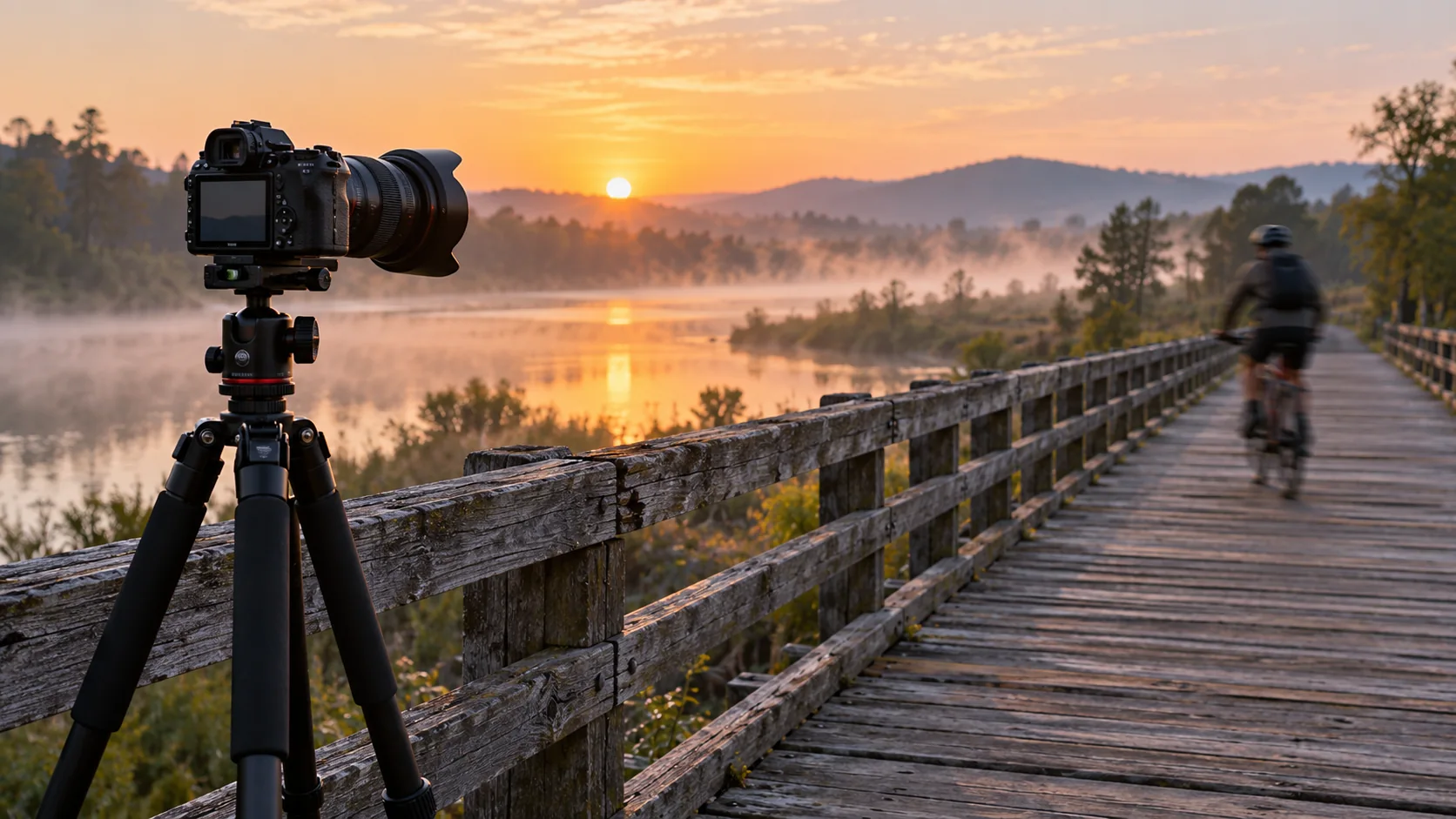
- Upload the original image rather than a screenshot of a preview. Choose a photo with recoverable edges and keep an untouched copy.
- Select a processing mode such as Standard, Motion Blur or Lens Blur. Choose Super Focus only when you accept generative reconstruction.
- Choose JPEG or PNG and request a quote. When the workflow is enabled, submit and use the comparison slider to inspect the same area.
Prepare the source
Camera shake, missed focus and compressed texture are different problems. Start with a mode suited to the source instead of treating every soft image alike. This interface exposes supported processing modes and output format; there is no invented strength slider.
Choose a useful direction

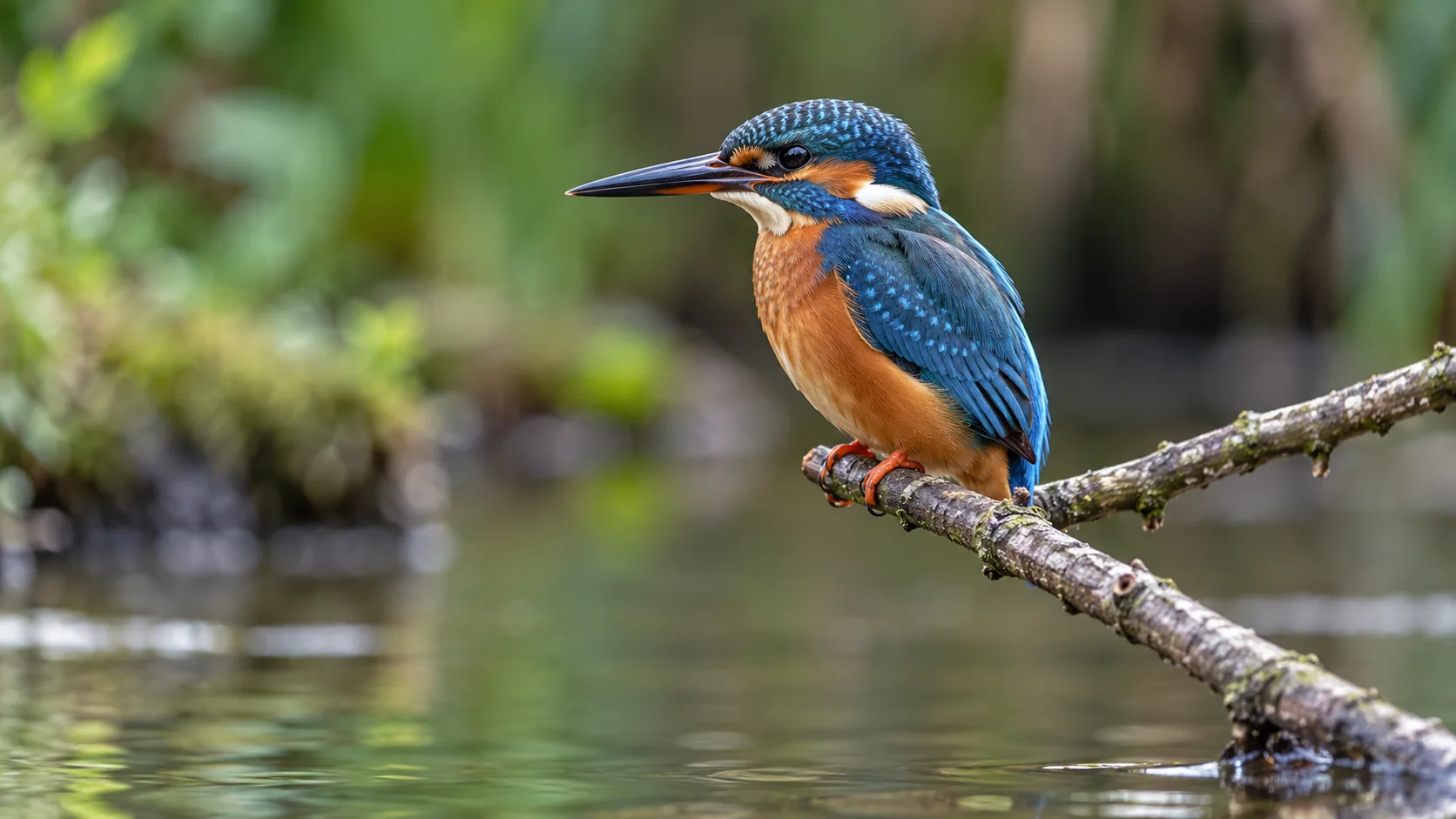
Evaluate a soft portrait, a handheld travel photograph, wildlife detail or a product image. Ordinary sharpening emphasizes existing edges. Super Focus reconstructs detail and may change a face, letters or textures; extra apparent detail is not proof that the source contained it.
Inspect the result
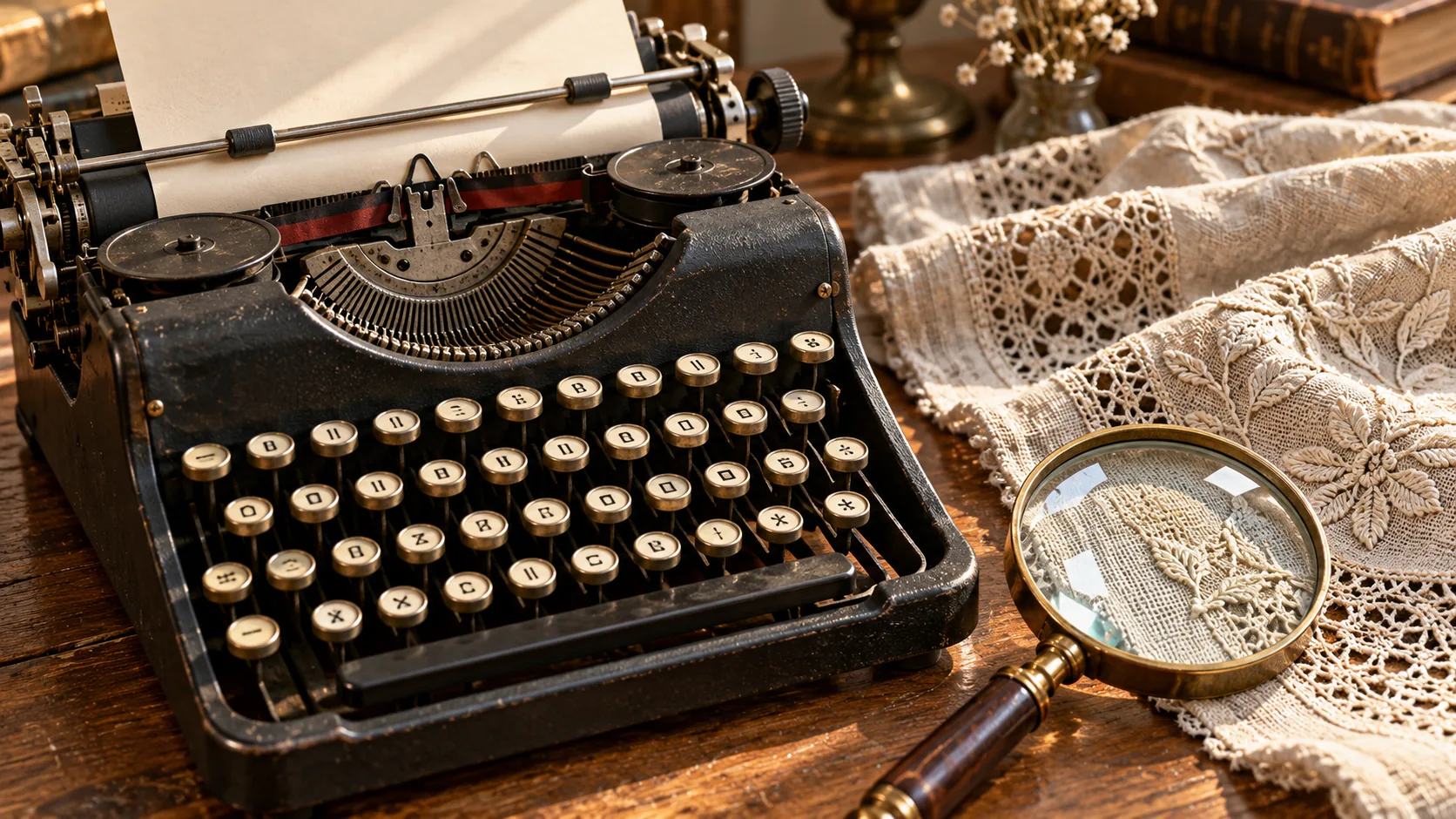
Inspect eyes, hair, readable text and high-contrast edges at the same scale. Look for halos, invented texture and oversharpened noise. Use the aligned comparison after a real result exists. Guide illustrations below are not before-and-after evidence from this tool.
Availability and credits
Only enabled models with approved contracts and prices can generate. The current workflow shows its availability and credit quote before submission. Changing settings requires a new quote. No fixed free allowance or processing time is promised.
The guide illustrations explain preparation and review. They are not results from a paid quality test. Your own submitted jobs remain available in History.
Questions before you start
Is unblur the same as upscale?
No. Upscaling increases dimensions; this workflow calls a dedicated sharpening endpoint. A larger image alone does not demonstrate blur correction.
Can every blurred image be recovered?
No. Missing information may be unrecoverable. Generative focus modes can invent details, so they should not be used as factual evidence.
Why can I not get a quote yet?
Each mode needs a reviewed price and an enabled site model. A supplier price labeled only in units is not silently treated as a per-image price.
heypix.io · Updated
What's new on this page
- — Added a dedicated workflow with input controls, visual examples and usage guidance.