AI Halloween Costume Portrait: A First Walkthrough
Build the costume portrait from your upload
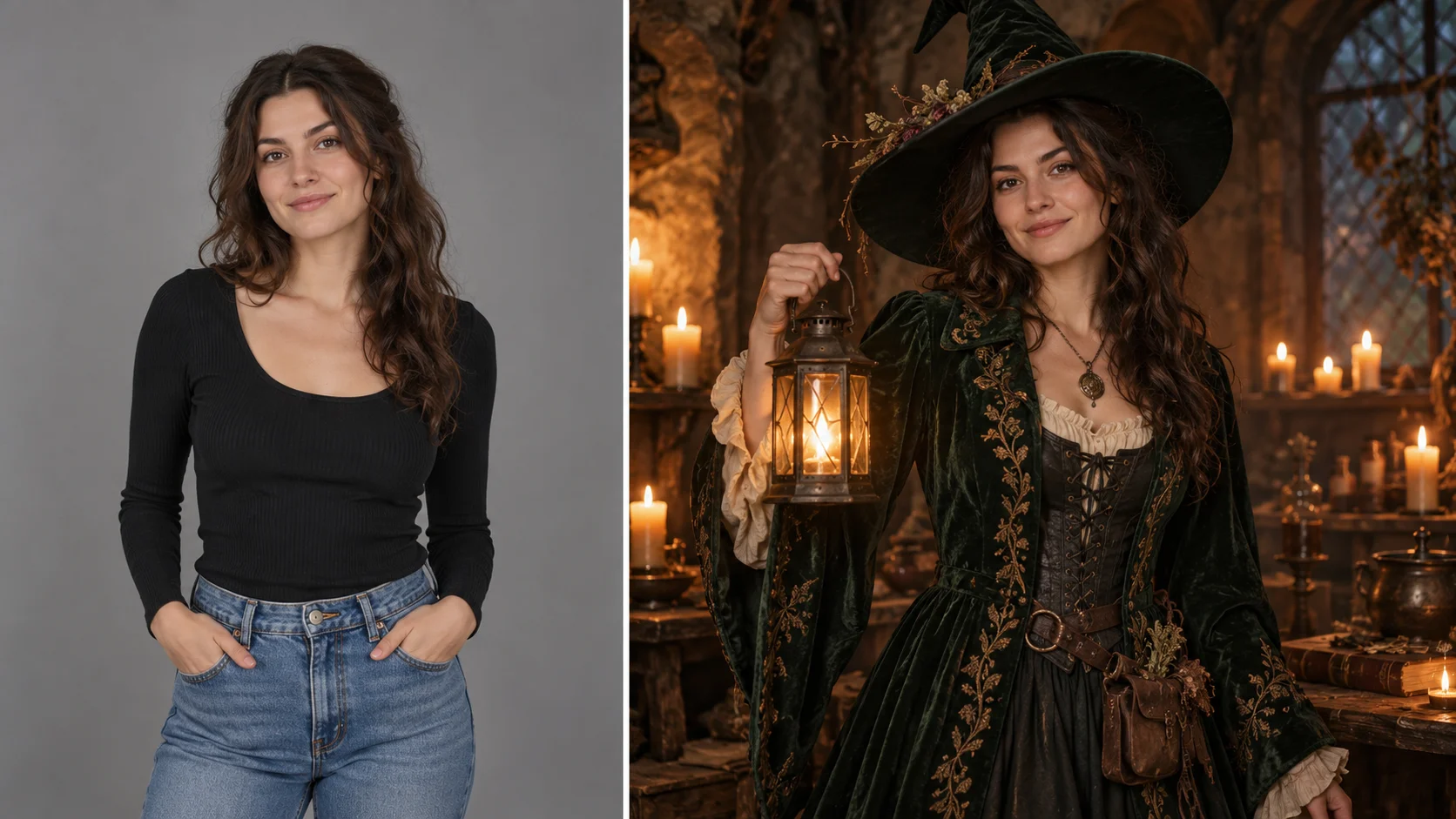
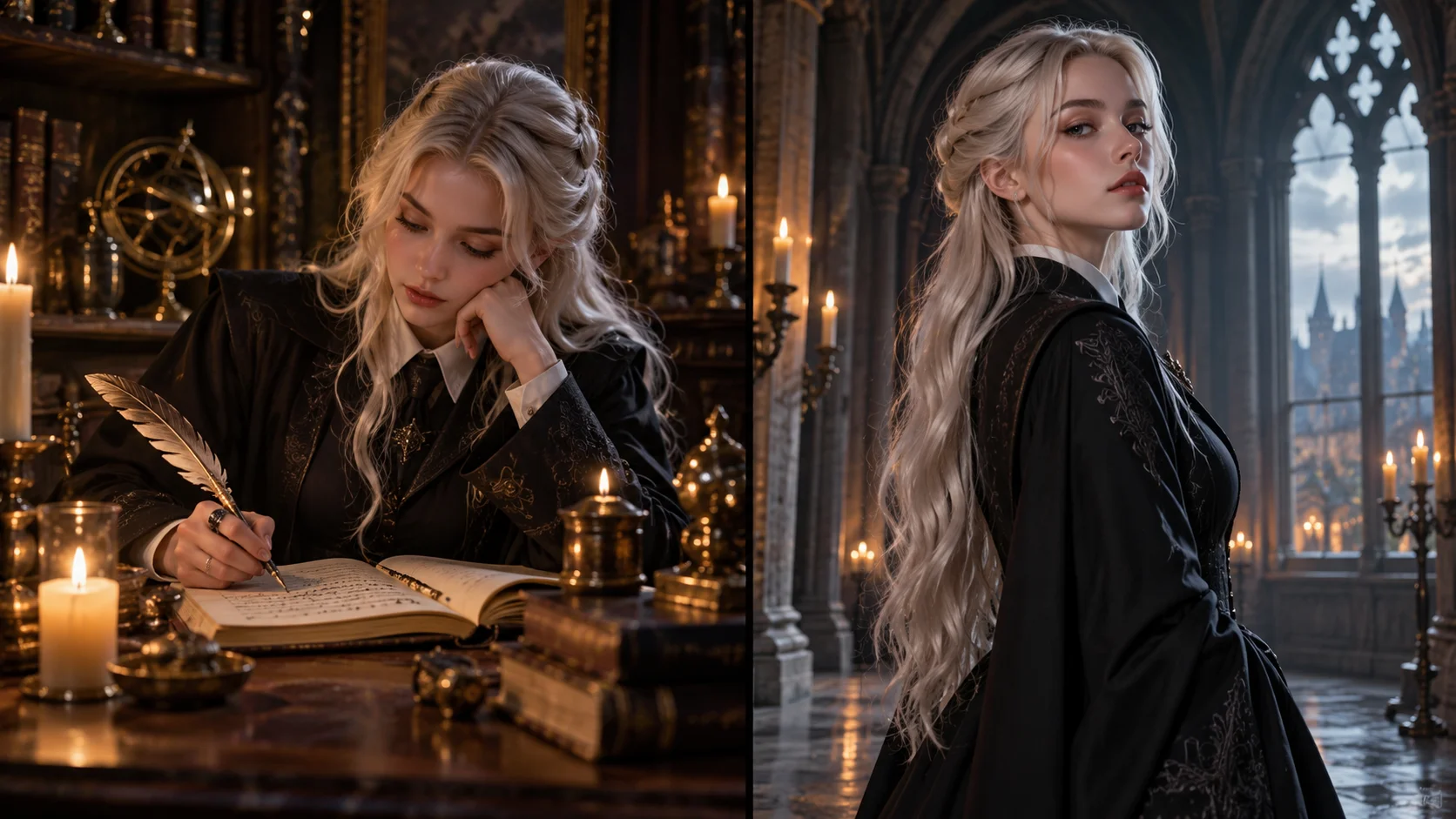
An everyday portrait provides the pose for a fully described costume concept.
History
Your first questions, answered
What will I create? Plan a Halloween look without first assembling every piece of the outfit. Upload an adult portrait, describe a coherent costume and use the image to decide which shapes and details you would like to develop.
What is the first step? Use Image to Image when your own photograph should guide the result. If you begin in Text to Image, describe the subject from scratch and leave reference uploads out of that request.
What makes a useful input? Start with a well-lit photo that shows the part of the costume you want to plan. For a head-to-toe outfit, keep both feet in frame. Avoid hiding the face behind existing hats or large props.
Is there a free way to begin? Start by preparing the image and brief. Generation follows the credit quote shown for your selected model and settings; any free-credit eligibility or current promotion is shown by the account or checkout flow.
Where is the price shown? The generator calculates the current credit requirement from the selected model and settings. Review that value before submitting; the page heading is not a separate fixed-price offer.
How do I follow the wait? History shows the task’s current status after you submit. Completion depends on the active model, chosen output and queue; return to the existing task instead of repeatedly submitting the same idea.
Plan a Halloween look without first assembling every piece of the outfit. Upload an adult portrait, describe a coherent costume and use the image to decide which shapes and details you would like to develop. The generator keeps the image, description and available model settings together so you can build a focused first version.
An everyday portrait provides the pose for a fully described costume concept.
1
Upload one clear adult photo
Choose a single photo of an adult with the face visible and not turned too far away. Daylight, a plain background and normal clothing give the edit room to work. Avoid group shots, heavy shadow across the face and busy patterns that compete with the costume you want.
2
Set the costume direction
Type what you want in the editable prompt: witch, vampire, retro space explorer or your own character. Use the available model controls to match the look. Say which parts should change and which should stay close to the photo, especially face shape and hair.
3
Read the quote, generate, review
The page displays a live credit quote before you commit. Sign in to your account, start the generation job, then open History to compare the result against your photo and prompt. If the costume drifted, edit the wording and run another pass.
What to look for in the image
Review the face, sleeve openings, waist seams and accessory placement. Make sure costume details form one readable outfit rather than a collection of unrelated props. Keep facial identity, body pose and the intended framing in view while judging the change.
Ways people use it
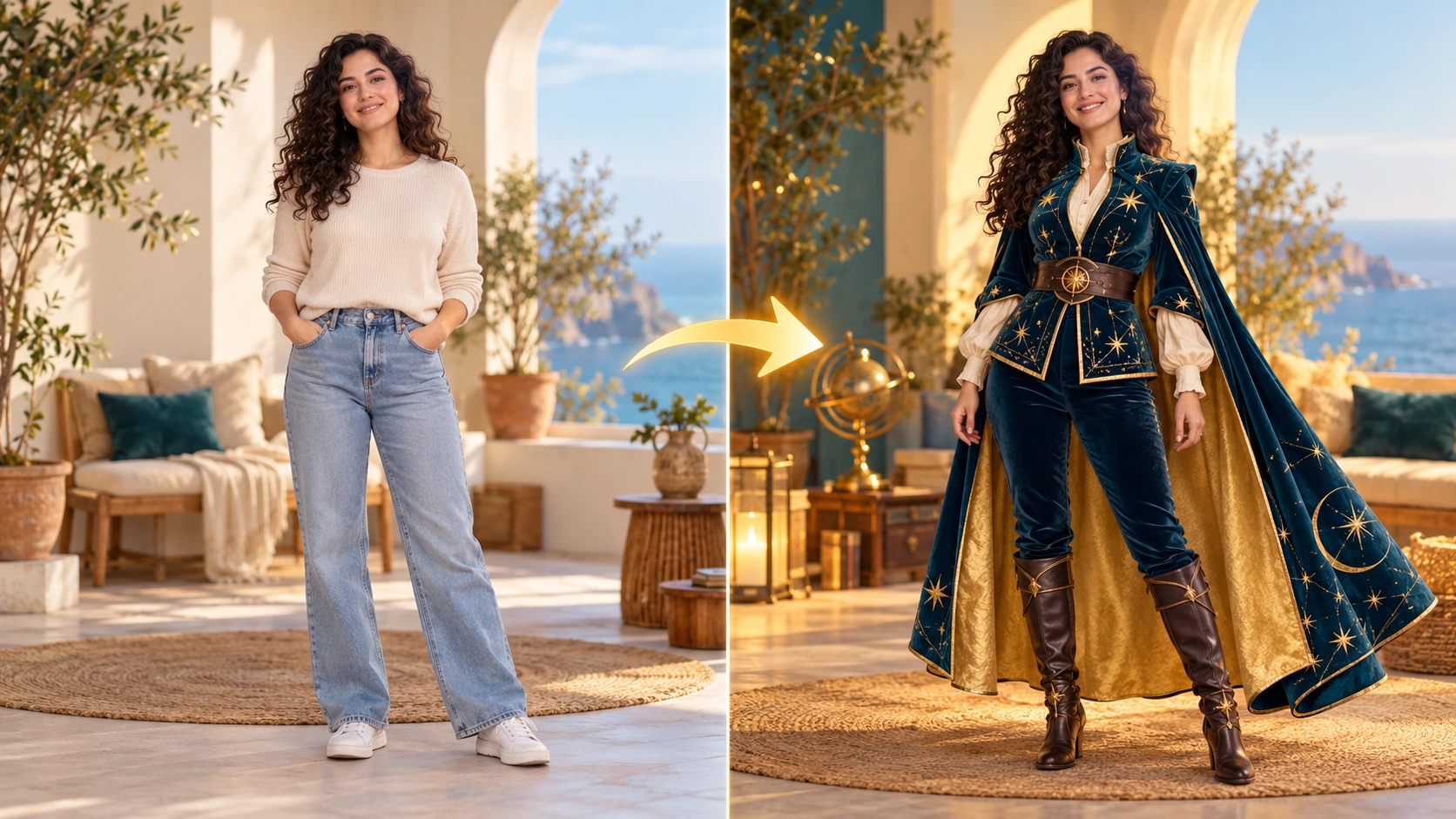
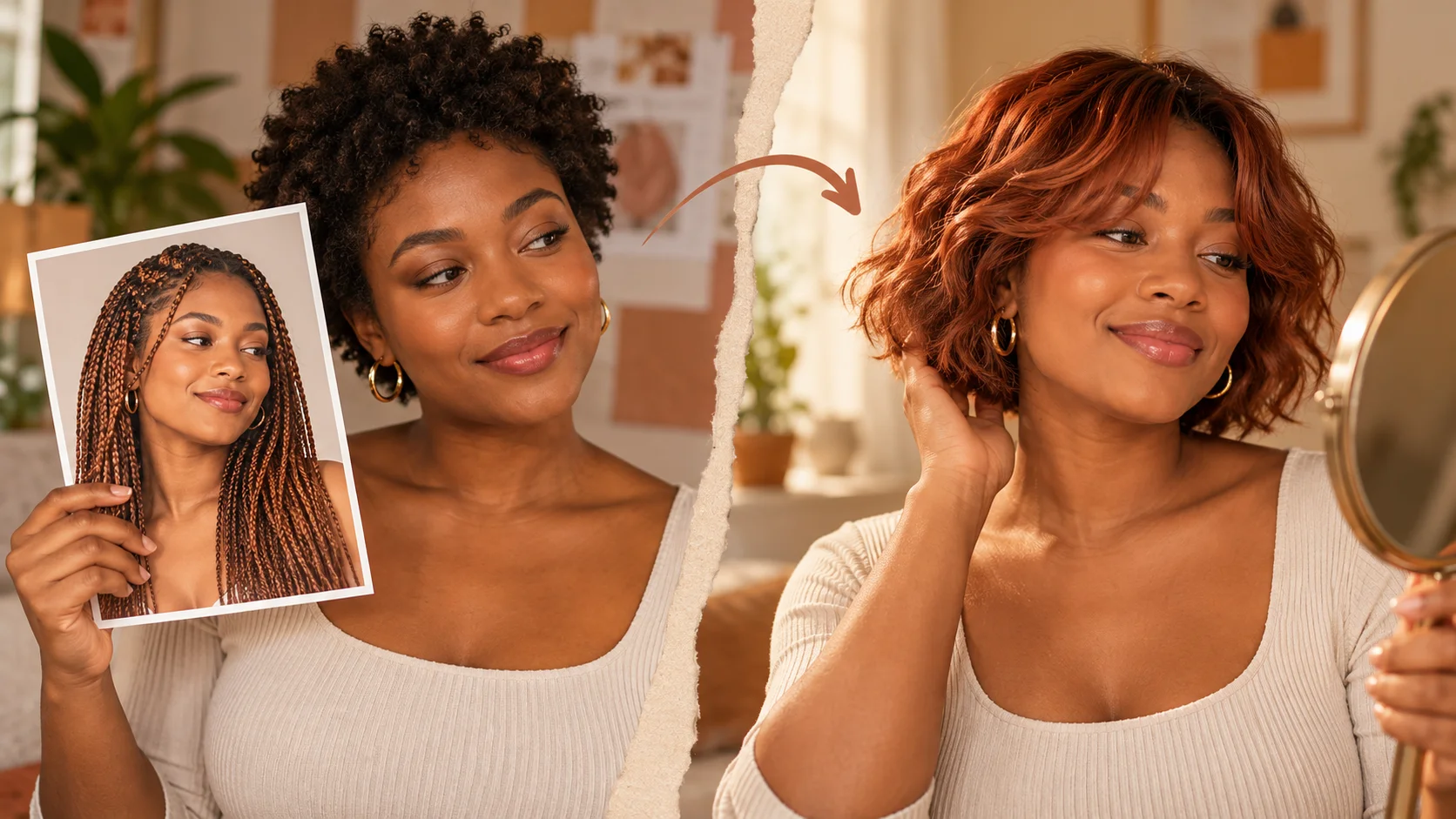
A clear outfit silhouette, visible face and believable fabric make the idea easy to follow.
A costume test before buying
You are undecided between a witch look and a vampire look. Generate each from the same photo, then judge which silhouette and palette suits you before spending money on anything physical.
A character for a story post
You write short fiction and need a portrait for a retro space explorer. Upload a photo of yourself, describe the uniform and lighting, and get a still you can use as a reference while you write.
A group invitation image
You are hosting a Halloween dinner and want a themed portrait for the invite. Generate an original character version of yourself, keep the framing simple, and place your event details as text outside the image.
Before you upload and after you review
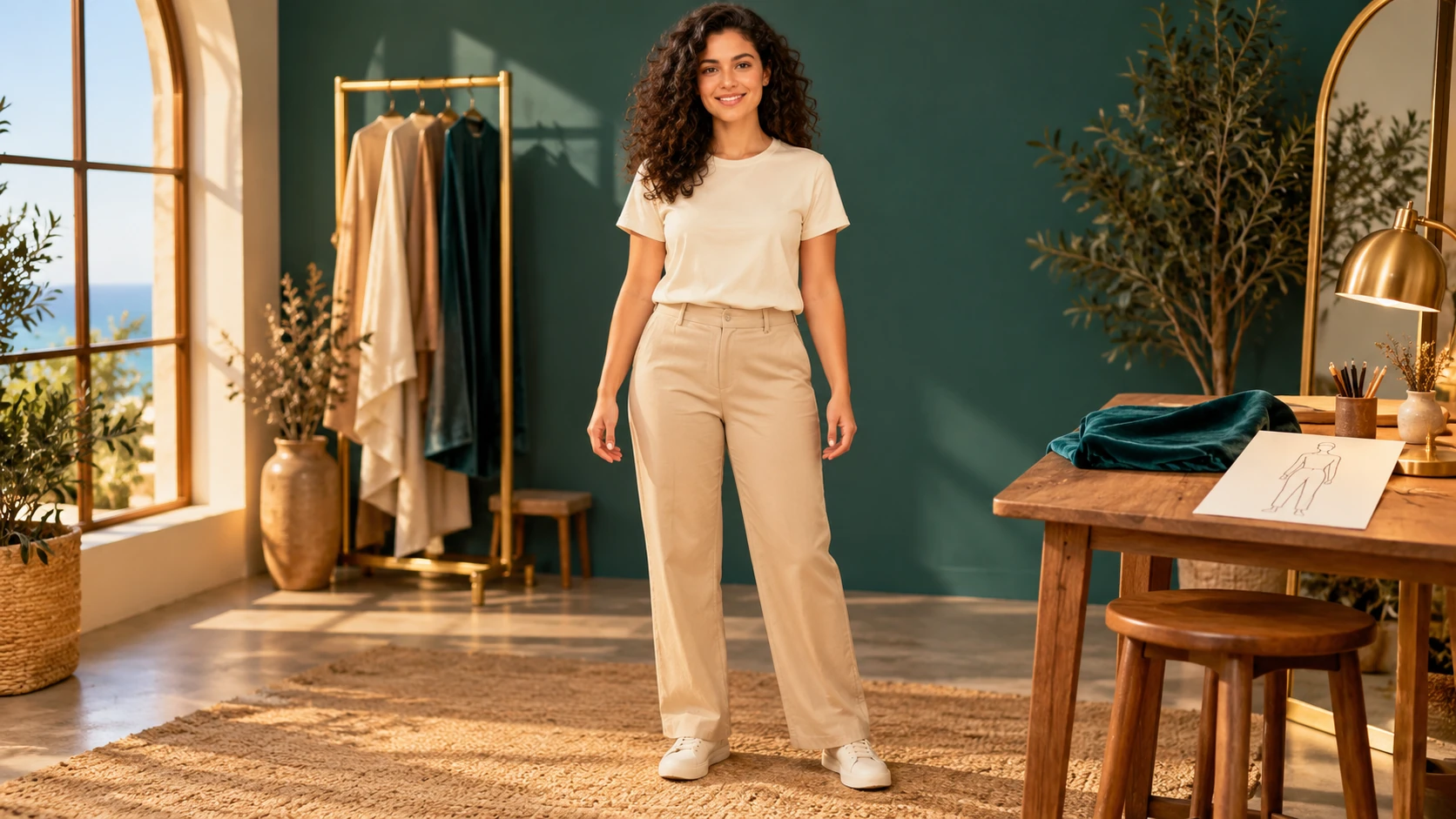
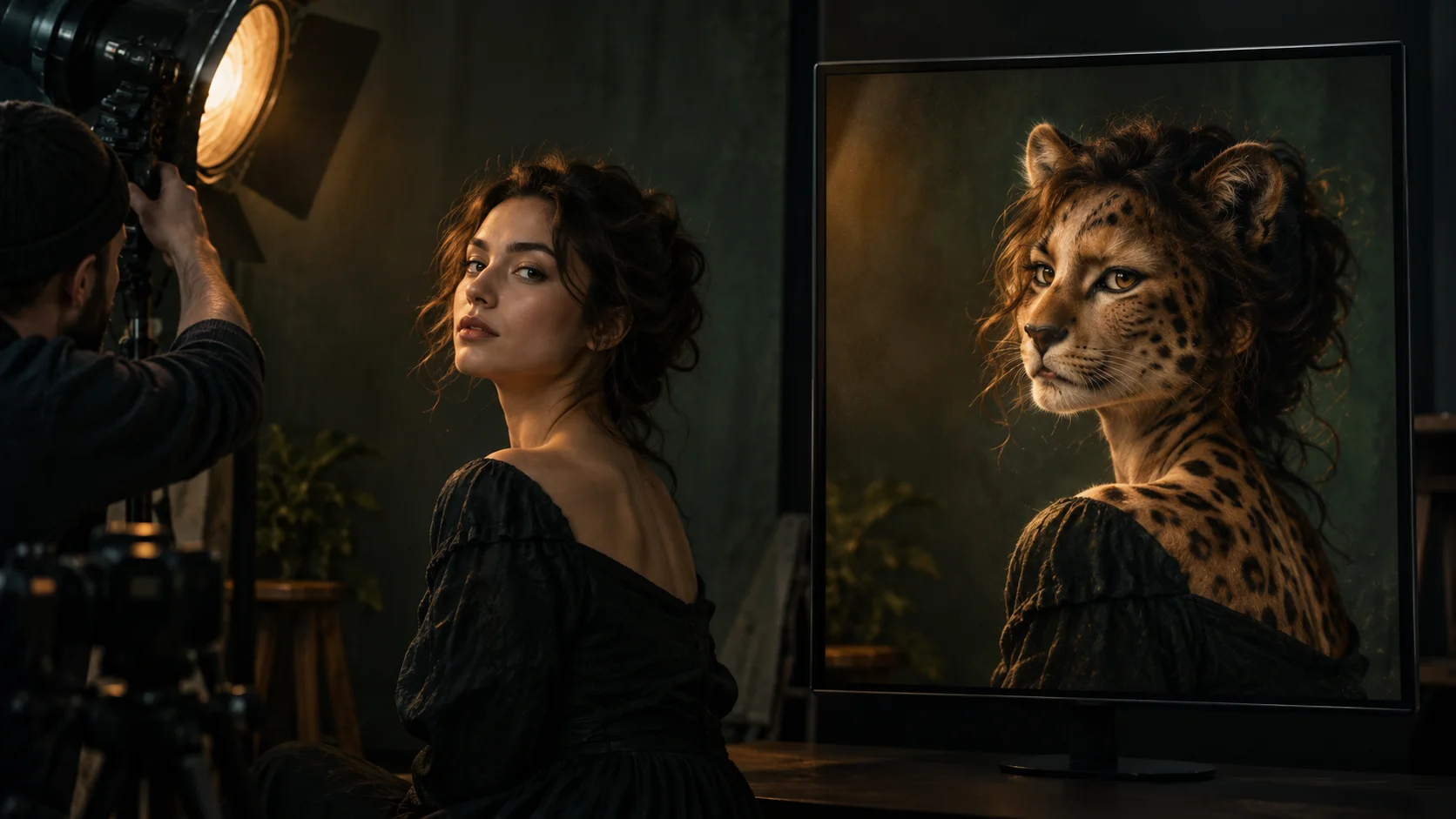
Plain clothing and a complete body outline are useful costume-planning inputs.
Start with a well-lit photo that shows the part of the costume you want to plan. For a head-to-toe outfit, keep both feet in frame. Avoid hiding the face behind existing hats or large props.
Pick a photo where the face is evenly lit and fully in frame, since shadow and cropping are hard to recover later.
Write the costume as garment, colour, setting and light, then stop; extra adjectives rarely help the model.
Compare the result to the original side by side and note one change per new attempt instead of rewriting everything.
Turn the idea into a clear brief
Before generating, choose one visible change to judge. For ai halloween costume, explicitly retain facial identity, body pose and the intended framing. Keep the first brief focused so a second attempt can adjust the one detail that needs attention.
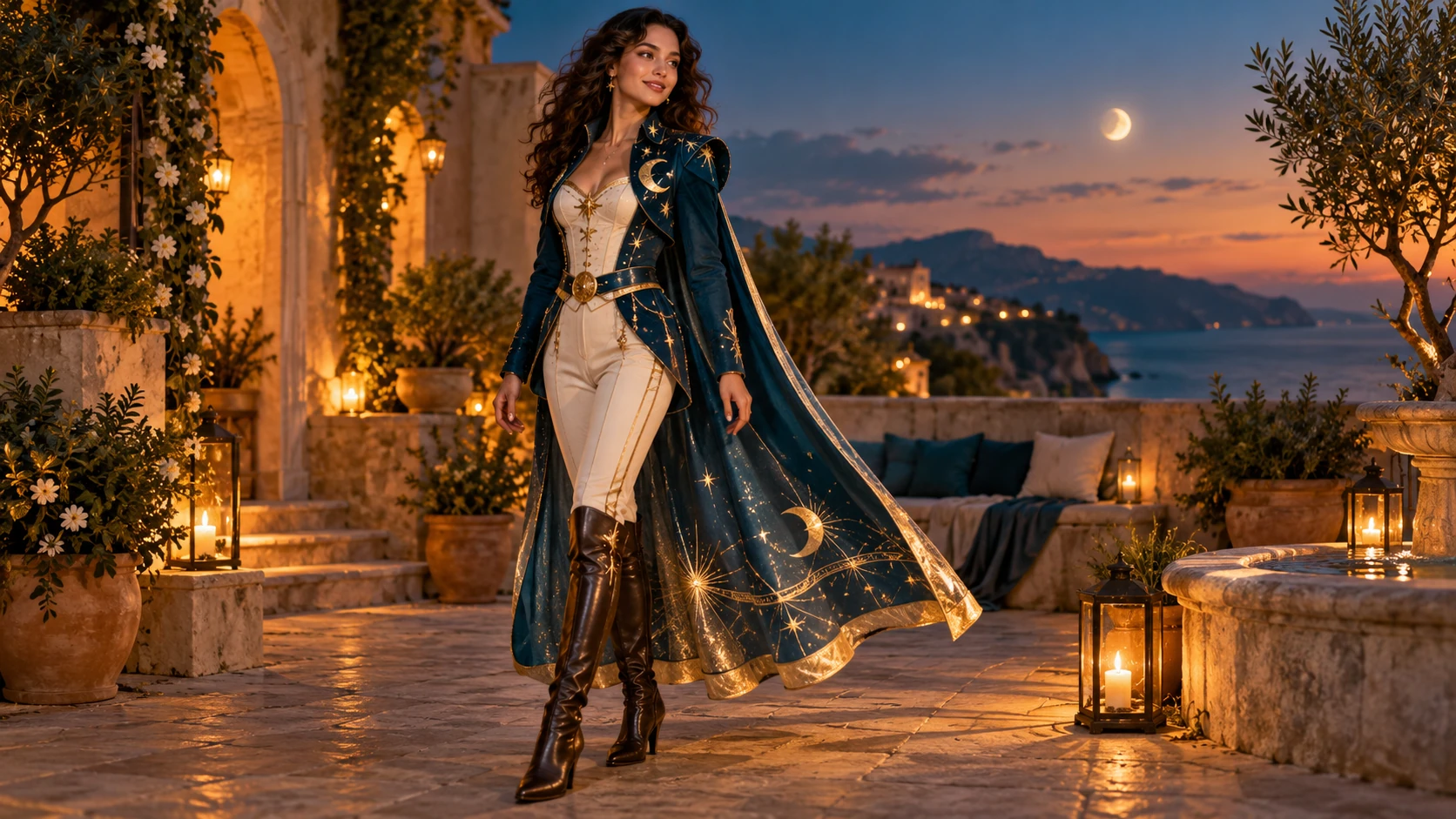
Retain the person’s face and posture from the photo. Create a midnight garden costume with a tailored emerald jacket, dark trousers and a light embroidered cape. Keep the face open, the fabrics plausible and the scene softly lit.
Review the face, sleeve openings, waist seams and accessory placement. Make sure costume details form one readable outfit rather than a collection of unrelated props. Keep a useful version in History, then change one part of the brief rather than replacing the photo, style and settings at the same time.
Before you run another image
Treat the displayed quote as part of choosing your image, alongside the model and output settings. If you change a setting, read the updated credit requirement before submitting. Use the site’s Pricing page for available purchase options and check any free-credit offer in the account or checkout flow.
A task can spend time waiting and processing before its result appears in History. The model, output choices and current demand influence that wait. Open the existing task to check progress instead of assuming that a slow response requires a duplicate request. Review the result, keep the original reference, and make the next brief more specific if another version is useful.
AI Halloween Costume questions
What does this page make?
It creates a still AI Halloween Costume portrait from a single adult photo. It is an image job, not a costume-transition video. The result is one frame you can review, save or discard.
What kind of photo works best?
One adult, face visible, even light, simple background. Group photos, mirrored selfies with the phone covering the face, and very dark shots all make the edit less predictable. A clear reference photo matters more than a high-resolution one.
Can I choose witch, vampire or something original?
Yes. The prompt is editable, so witch, vampire, retro space explorer and original characters are all directions you can type. Describe the garment and setting concretely. The available model controls let you adjust the look without changing the costume idea.
Will the face stay exactly the same?
Not exactly. The face and clothing may vary from your upload, and the likeness is a resemblance rather than a copy. Use a clear reference photo and treat each result as a new portrait, then decide whether it is close enough for your use.
How do credits and the account work?
Sign in to your account, and the page shows a live credit quote before generation. You see the cost for the job you are about to run, and completed jobs appear in History.
What should I change for the next attempt?
Start from the same photo and pick one visible detail to improve. Review the face, sleeve openings, waist seams and accessory placement. Make sure costume details form one readable outfit rather than a collection of unrelated props. Adjust that detail in the brief, keeping the remaining settings steady so the comparison stays useful.
Start with one photo
Upload a clear adult photo, describe your costume, read the credit quote, then generate and check History.