Explore AI video creation
Compare the site's video creation options and choose a workflow for your next scene.


Loading history…
The Outstanding Tiny Desk AI Video Generator helps you plan a fictional desk-band video with three performers, readable faces and hands kept distinct from the desk and instruments. Choose Text to Video to describe an invented ensemble without uploading a photo, or Image to Video to animate one prepared group photograph while retaining its actual people and arrangement. Set expectations in the live generation panel: the result depends on the options shown there, and no original recording is bundled.
Select Text to Video to describe fictional performers without uploading a photo. Choose Image to Video when you want to animate one prepared group photograph and preserve the actual people and scene it shows. This is an independent original desk-band concept, not a supplied concert template or recording.
For Image to Video, prepare a single group photo that already shows the intended performers, clothes, room, positions and instruments. Keep faces unobstructed and frame the desk and hands clearly. There are no separate portrait slots or automatic band-role assignment, so arrange the ensemble and instruments in the source image first.
Use the English prompt for your chosen mode as a starting point. Ask for one steady continuous ensemble shot, a small shoulder sway and a friendly closing wave. Keep everyone in place and request plausible hands separated from the desk and instruments. Avoid relying on cuts, complex hand playing, a solo or guaranteed lip sync.
Review the live duration, aspect, resolution and audio options in the Seedance 2.5 panel before generating; available settings are shown there. Audio follows those live options, and no original recording is bundled. Check the current credits beside Generate, then follow the job status in History. A generated outcome is not guaranteed.
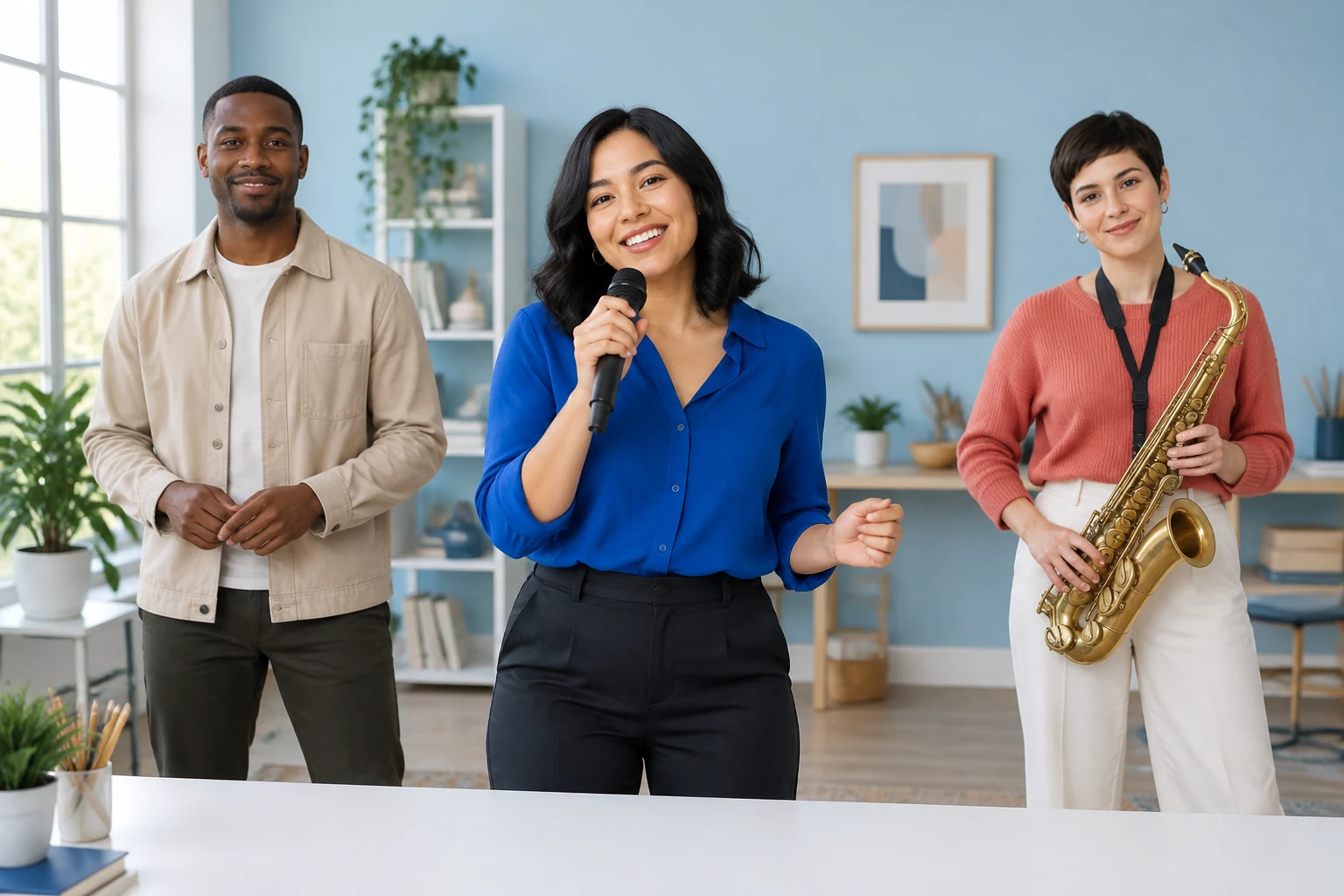
For the example concept, place an adult woman with shoulder-length black hair in a cobalt blouse, an adult man with dark skin and short hair in a beige jacket, and an adult woman with a pixie haircut in a coral sweater together behind the desk. Give each face space in the composition rather than hiding one person behind another. A tidy creative studio, white desk, pale blue wall and soft window light provide a simple visual setting without crowding the ensemble.
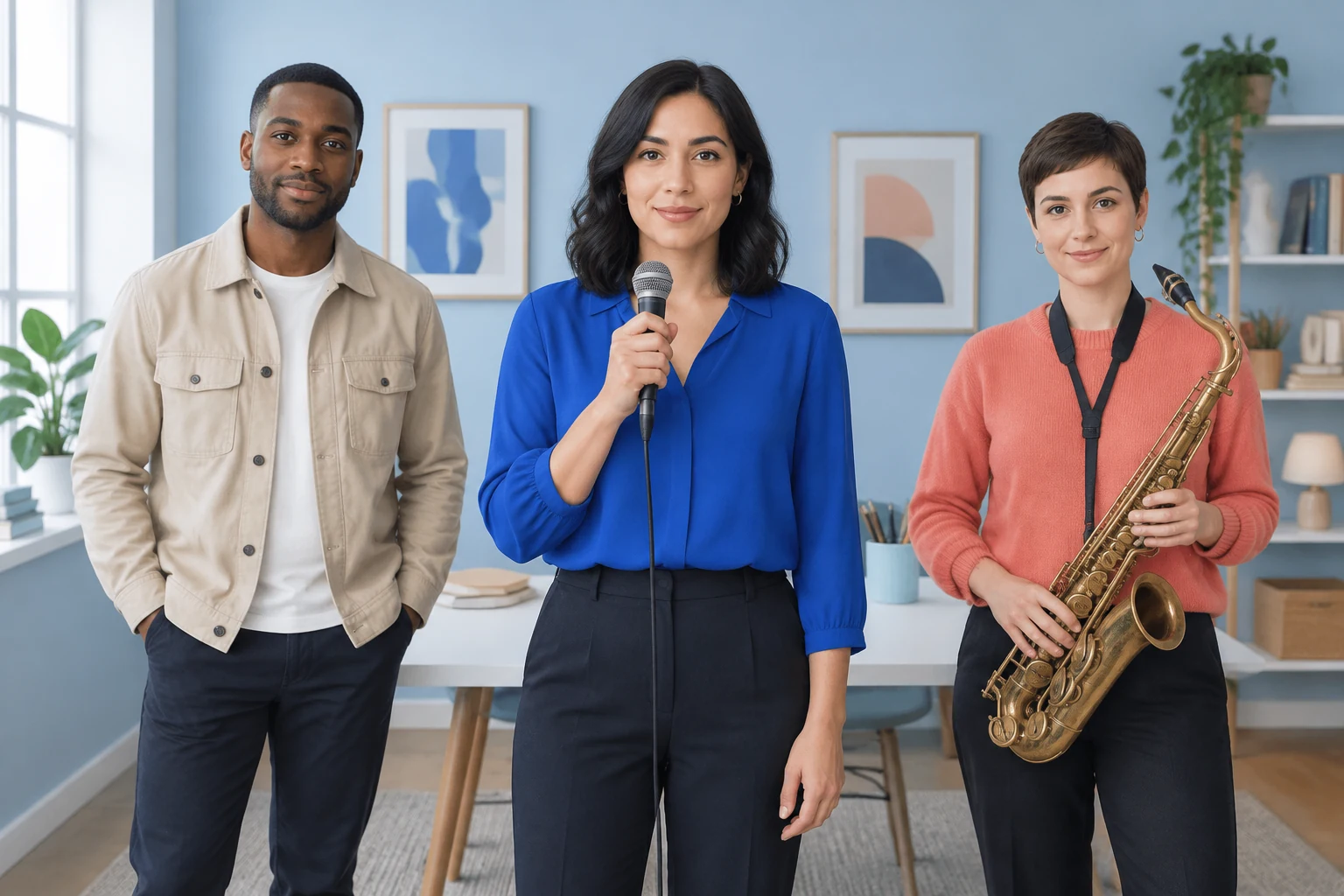
Write prompts that distinguish hands from the desk surface and instrument shapes. In an input photograph, check that sleeves, hands and instruments are not merged by overlap or cropped at the frame edge. Request plausible, restrained movement instead of intricate playing: a small shoulder sway and a friendly closing wave are easier to describe clearly. These prompt choices guide the scene; they do not guarantee a particular generated result.
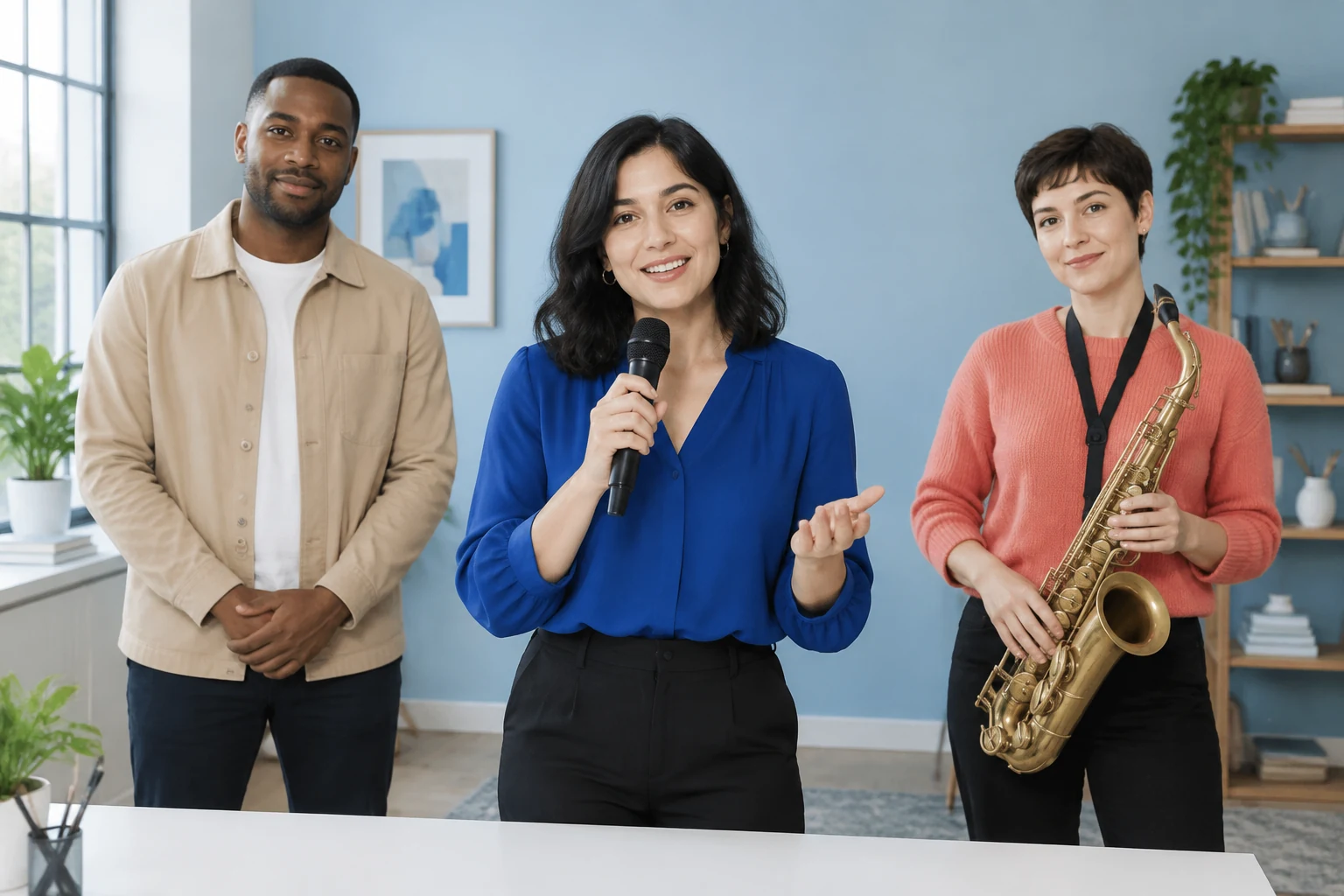
Text to Video describes the fictional performers and room in your prompt; it does not require an upload. Image to Video works from one prepared ensemble photograph and adapts that image while preserving its actual people, faces, hairstyles, clothes, room and positions. It does not provide separate portrait slots or automatically assign band roles. Prepare the intended group and instrument arrangement in the photograph before selecting that mode.
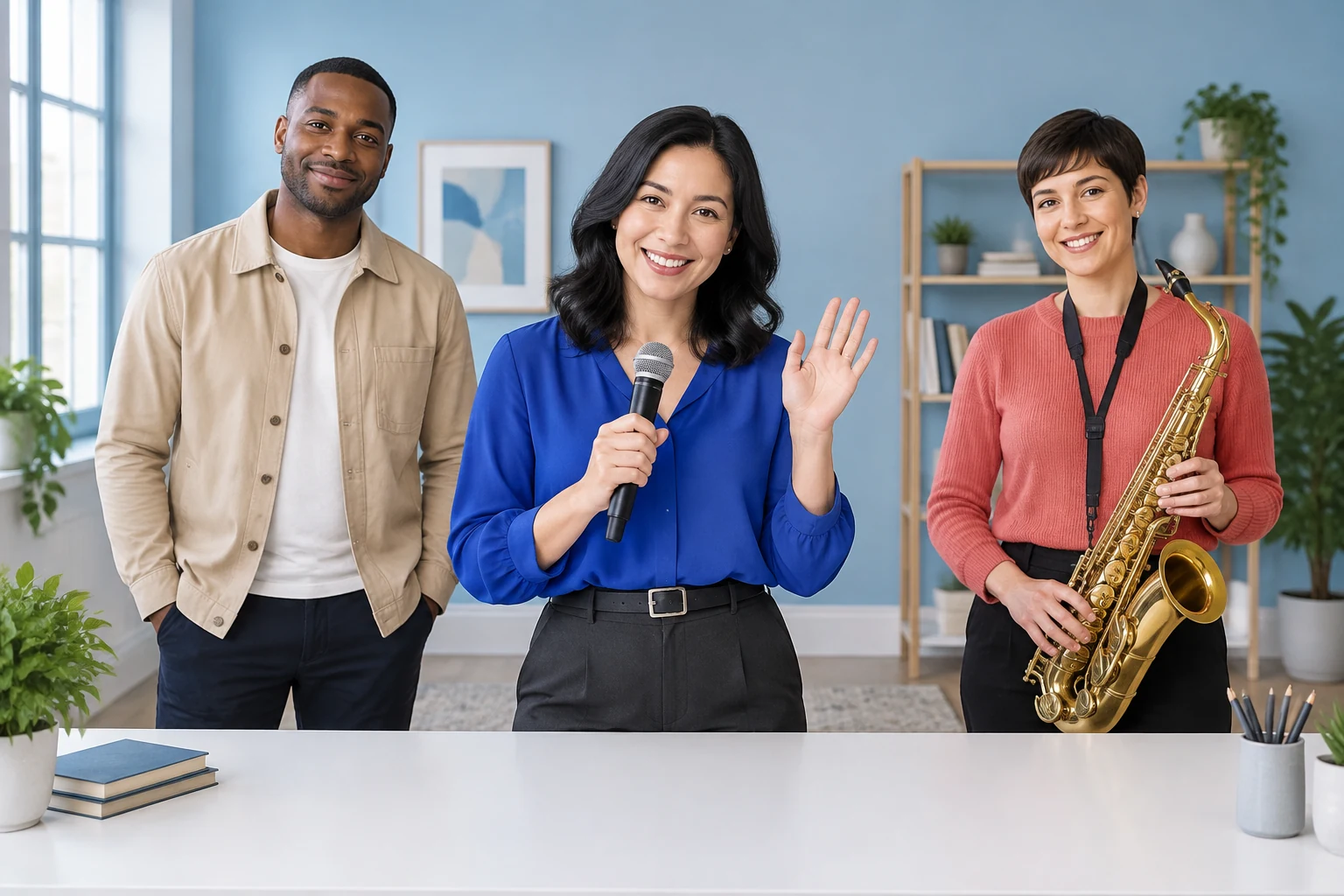
The nine-second silent three-frame slideshow is a planning preview, not a finished generated performance. It helps you review the intended visual sequence: the ensemble, a small greeting and a closing pose. Use it to check whether the framing and simple actions make sense before generation, rather than treating it as a sample of final motion, audio, duration or performance quality. The generated video settings and status are handled separately in the live panel and History.
No. Text to Video describes fictional performers without an upload. Image to Video requires one prepared group photograph when you want to animate an existing ensemble.
The described Image to Video workflow uses one group photograph, not separate portrait slots. Prepare a single image that already shows the intended people and arrangement.
No automatic band-role assignment is described. Use a source group photo that already shows the performers and instruments you want, and do not rely on the mode to add or rearrange them.
There is no preset style selector. Describe the desired visual scene in your prompt and check the options available in the live generation panel.
No. Avoid relying on guaranteed lip sync, complex hand playing, a solo, cuts or musical synchronization. The suggested prompt keeps movement restrained and asks for plausible hands.
Do not assume a fixed runtime or allowance. Check the live duration options and current credits beside Generate, then follow generation status in History. No free allowance or guaranteed outcome is promised here.
Compare the site's video creation options and choose a workflow for your next scene.
Explore an image-editing workflow for building or adjusting a group composition before preparing your ensemble image.
See an image-editing option for exploring clothing changes in a prepared photo.
Review an image workflow that may help when preparing a soft or unclear source photo.
heypix.io · Updated