AI Image Generator
Open the image-generation workspace and choose an available mode and model.


Use MiniMax H3 Image to plan a clean bag product image or make a focused change to one supplied photo. Start with a coral bag, visible strap and soft contact shadow. For a reference edit, request only a dusty-blue background wall while preserving the object and its original placement.
Select Minimax H3 Image for your product brief. Text to Image creates a scene from an editable prompt without an upload. Image to Image uses one actual reference photo and its own editable instruction. Keep your chosen bag and the intended mode clear before generating.
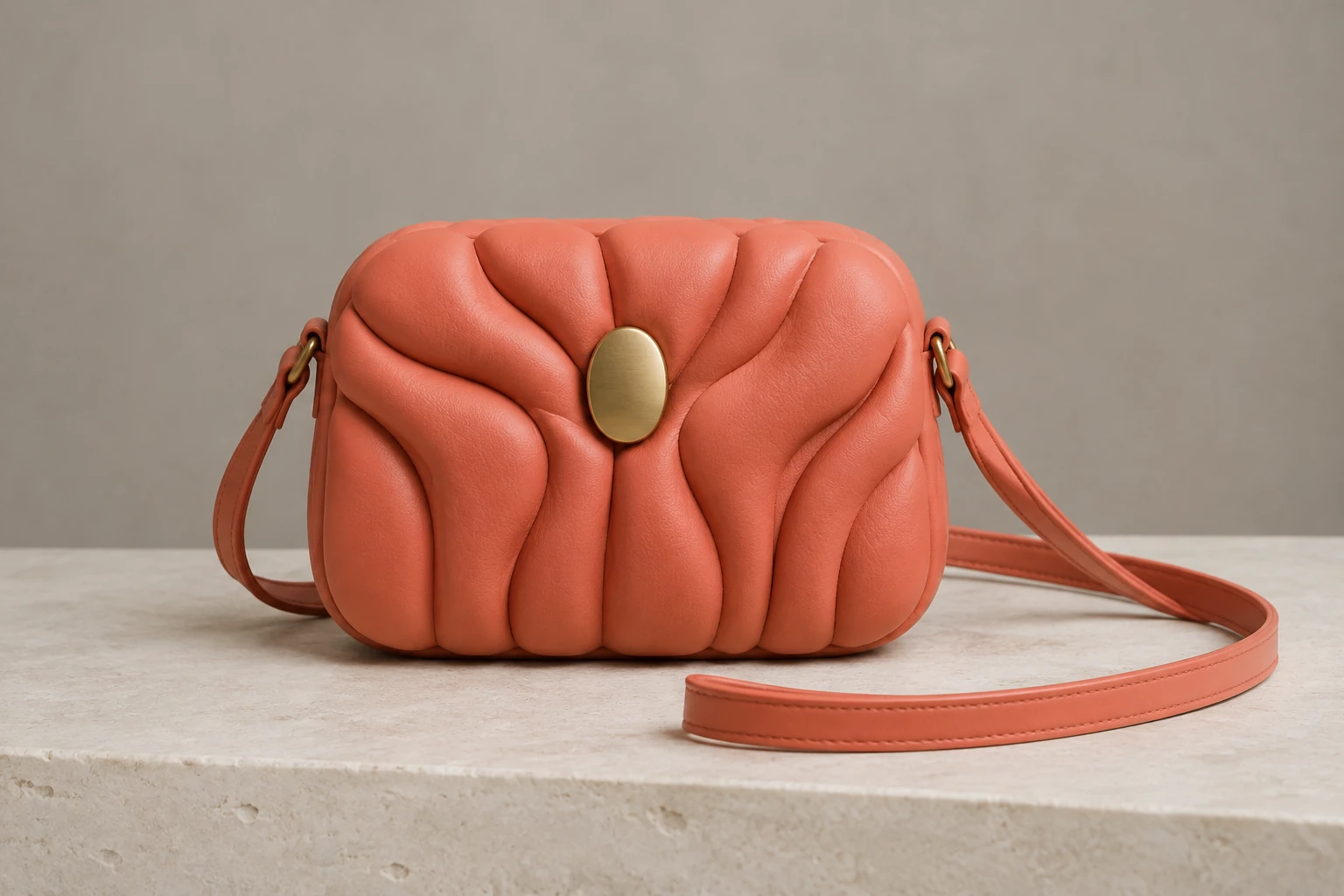
Name the bag’s visible features, surface, background, framing and light. For the original example, specify the coral sculptural bag, plain oval clasp, matching strap, cool ivory stone and warm gray wall. Ask for the whole bag and strap to fit inside the frame and for a believable contact shadow. Keep the prompt concrete rather than relying on vague style labels.
Prepare one clear reference that actually shows the object or scene you want to retain. State the single requested change first, then spell out what must remain: the reference’s own subject, strap, colors, shape, position, materials, camera and lighting. For the wall-hue task, request dusty blue and do not replace the reference with the coral example.
Model, aspect and resolution settings determine the live Required Credits shown in the interface. Check paid eligibility and the current quote before selecting Generate; this model has no free-eligible account access here. When ready images appear, inspect status and image in History. Check strap attachment, clasp shape, proportions, material edges, contact shadow, lighting and unwanted text before using an image.
Treat the prompt as a short shot plan. Establish the subject and its distinctive parts, then describe the surface and background, camera framing and light. For a clean product photograph, explicitly keep the entire object and strap within the frame. A soft contact shadow helps communicate that the bag rests on the stone rather than floating above it. The alternate concept is a separate original bag composition on a pale beige tabletop against a soft dusty-blue wall under restrained natural window light.
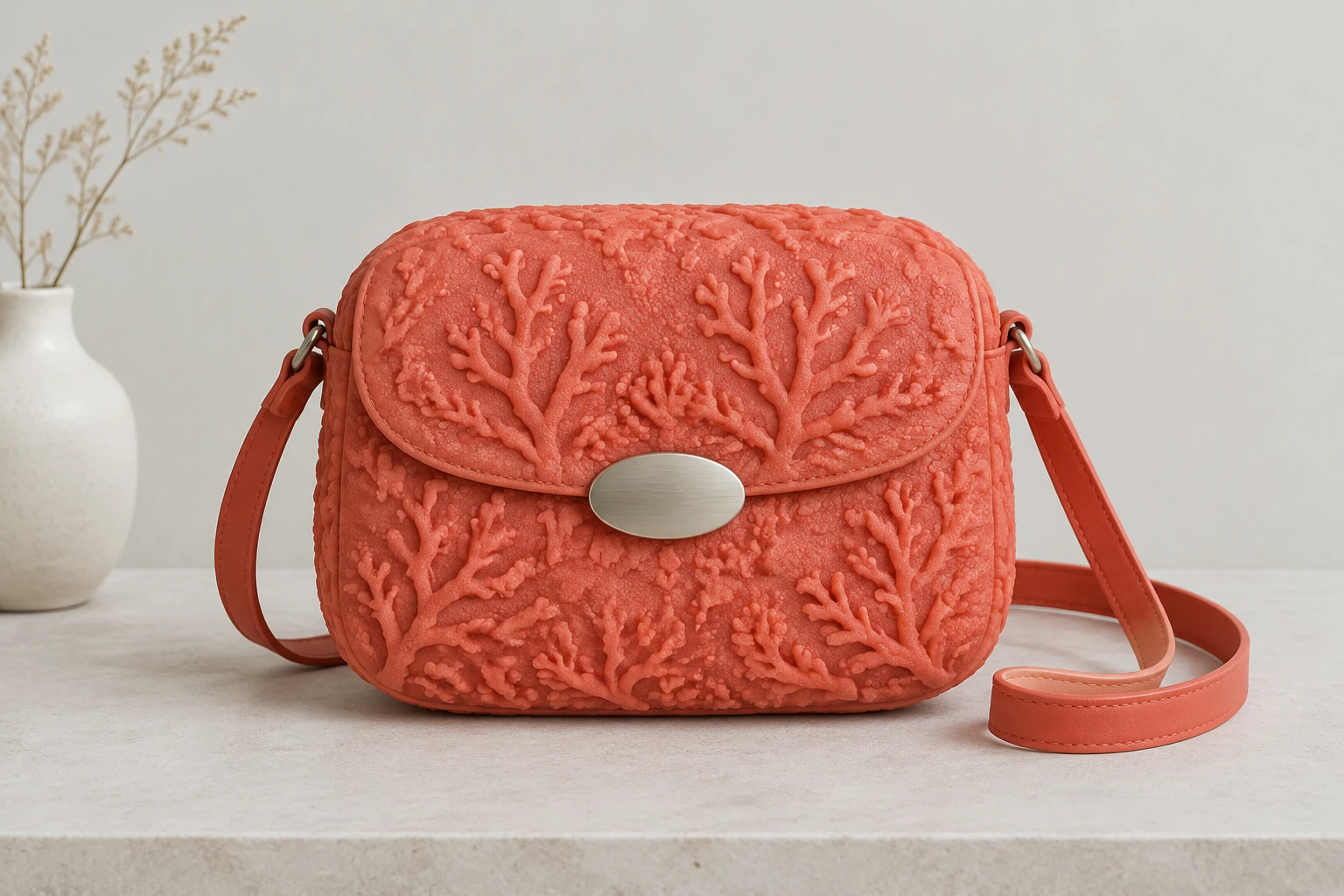
Image to Image is suited to a focused change when you already have an image to preserve. Supply one actual reference, identify the wall as the only element to change, and name the properties that must stay intact. Clear preservation instructions help keep the task narrow: do not change the object, strap, colors, shape, position, material, camera or lighting. Compare those visible details with your actual photo after the edit is ready.
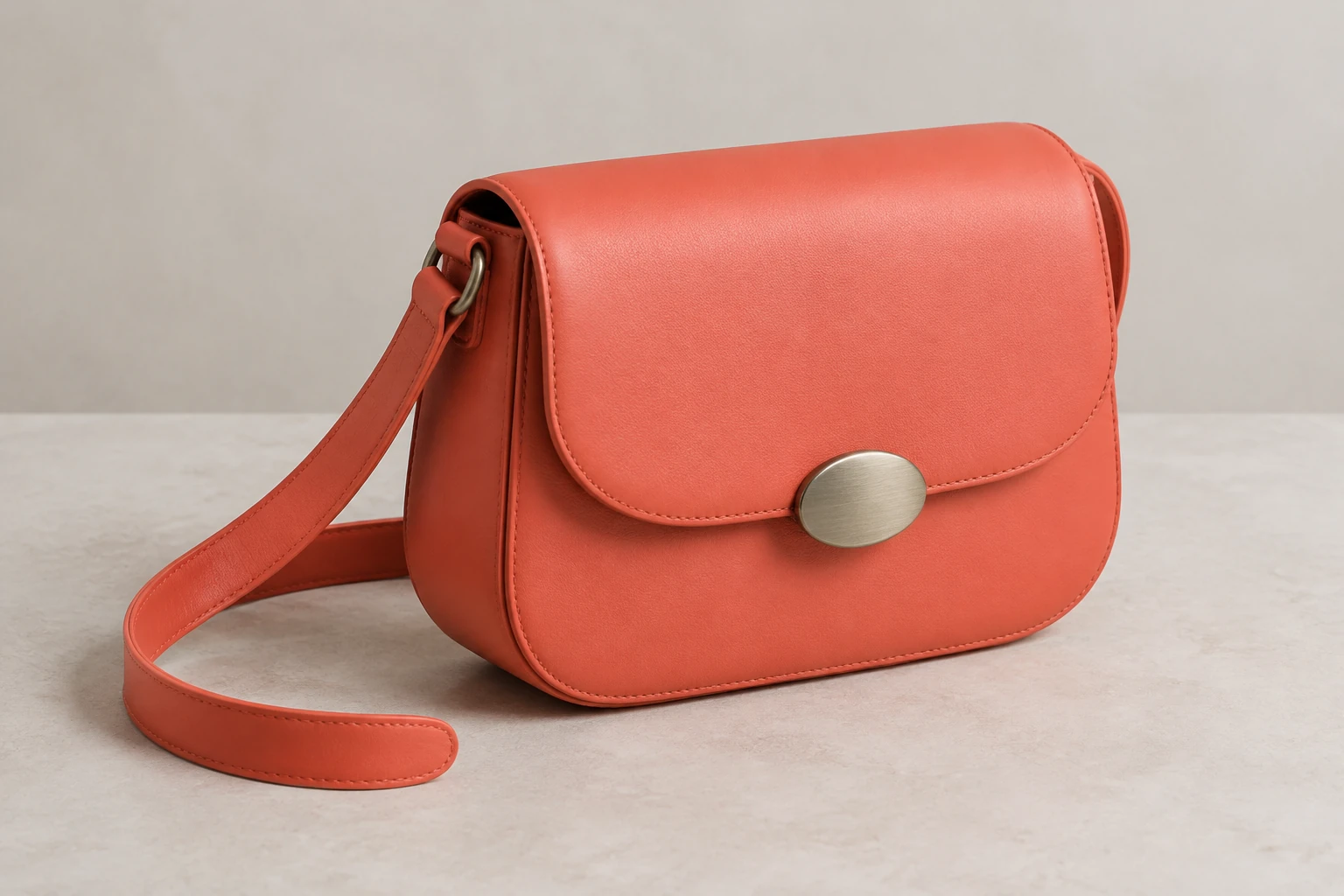
Once a ready image is available, check the strap connection and clasp silhouette first, then look along the material edges and bag proportions. Confirm the contact shadow sits naturally against the surface and that the light direction still makes sense. For an edit, compare the visible subject and layout with your supplied reference and verify that the wall—not nearby objects or foreground surfaces—received the requested hue change. Check for unwanted lettering before using the image.
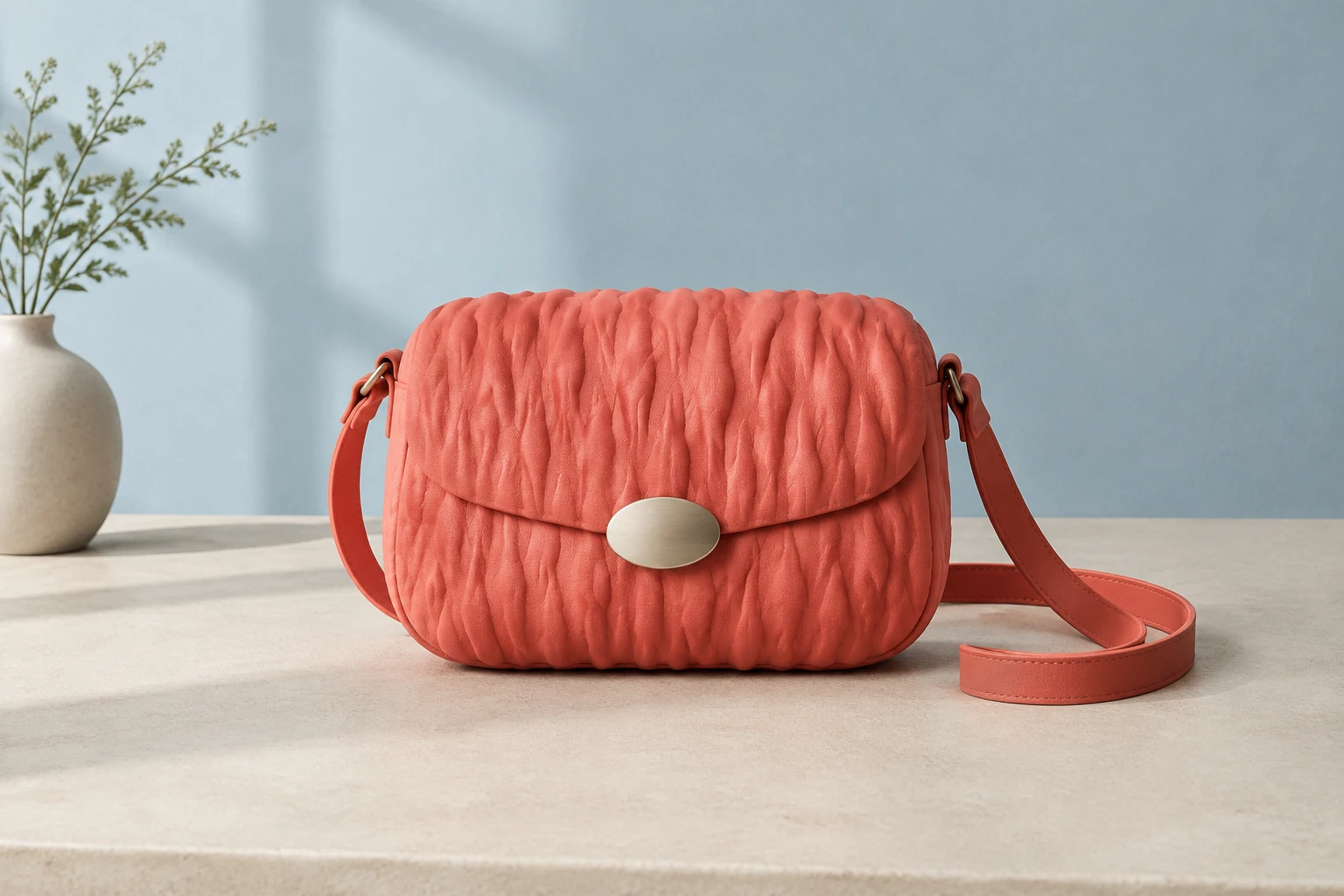
Choose Minimax H3 Image, then review the available aspect ratio and resolution for the product photo. The live Required Credits show the cost of your selected settings. This model uses paid access on this site, so check your account eligibility before Generate. Follow status and ready images in History. When refining the bag brief, inspect the strap, clasp and shadow again and check the new quote before another attempt.
It is the enabled image model in the heypix.io catalog, displayed as Minimax H3 Image. This guide covers its still-image Text to Image and Image to Image workflows.
Yes. Text to Image uses an editable prompt and zero uploads. Image to Image uses one supplied reference and an editable prompt.
This model has no free-eligible account access here. Check paid eligibility and the live Required Credits quote before Generate; model, aspect and resolution settings determine the quote.
No exact wait time is stated. History shows generation status and ready images, so check there for the current state and completed results.
Use one clear actual reference that shows the subject or scene you want to retain. Request one specific change, such as a dusty-blue wall, and explicitly preserve the reference’s own object, strap, colors, shape, position, materials, camera and lighting.
Review the strap attachment, clasp shape, proportions, material edges, lighting and contact shadow. For an edit, confirm the intended element changed without unwanted shifts elsewhere, and look for unwanted text.
heypix.io · Updated