

Genie 4 vs AI Video Generators: Choose Your Project Handoff
Genie 4 vs AI Video Generators: use this practical handoff guide to decide whether to explore a garden cafe interactively or deliver a fixed portrait reveal clip.
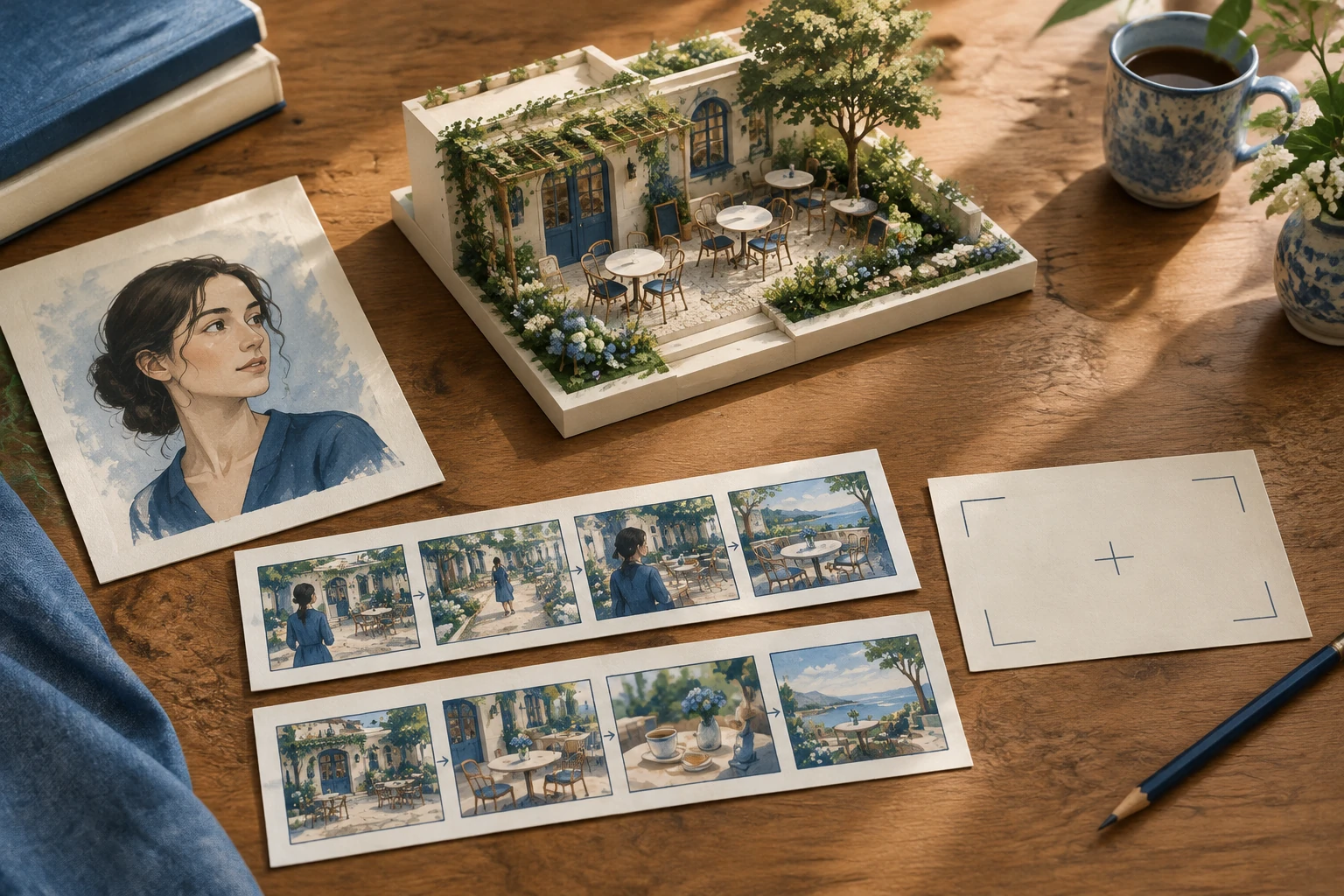
If your brief is to let someone explore a garden cafe, investigate an interactive world-model route; if it is to reveal a portrait in a planned sequence, prepare a fixed video clip. That is the practical distinction behind Genie 4 vs AI Video Generators: first choose what the viewer should be able to do, then hand off the right kind of brief. A still image can help you plan either route, but it does not turn into a navigable world by itself.
What's new on this page
- 2026-11-13 — Page published. Added a reusable one-image handoff worksheet for two distinct creative routes.
Start with the viewer’s job
Imagine you are creating social content for a small garden cafe. You have one reference image showing a portrait subject near a leafy seating area. The client wants either a place to explore or a short portrait reveal. Those requests share a visual starting point, but not an end product.
Route A: explore the garden cafe. The viewer should be able to steer around a scene and discover the space. Treat the portrait or reference image as a visual anchor for the setting and identity—not as a promise that a finished photograph will become an interactive environment. This route suits a brief where spatial exploration is the point and the delivery can be shaped around an interactive experience.
Route B: deliver a fixed portrait reveal. The viewer watches a clip with a chosen beginning, progression and endpoint. Specify the portrait, framing, background and acceptable visual changes. This route suits a social post or campaign asset with a known composition and a clear final reveal.
The question to answer before making anything is: Should the audience steer the scene, or watch the scene unfold? If the answer is watch, start with a clip workflow. HeyPix offers ordinary prompt/image video workflows that create a clip rather than a user-steered environment; this site does not provide Genie 4 access. Review live model options, credits and History before choosing a workflow.
What Genie 4 is—and is not in this handoff
As of November 13, 2026, Google DeepMind describes Genie 4, announced October 27, 2026, as an interactive world-model research preview for trusted testers, with wider availability forthcoming; it supports real-time scene steering and native audio, while continuity and audio remain limited. (Official model page; announcement) Our team has not used Genie 4 and makes no independent claims about performance, price, country availability or latency.
The one-image handoff worksheet
Create or select one clean reference image. For this cafe scenario, it might show the intended portrait subject and a readable slice of the garden seating area. Add the following sheet beside it. It is a planning brief, not a guarantee that any tool will preserve every detail.
Reusable input sheet
- Project and intended delivery: Name the campaign and choose one: interactive space to explore or fixed portrait reveal clip.
- Subject identity: Describe who or what must remain recognizable. For a person, note defining features, hair, clothing and expression. State which traits are essential.
- Composition: Specify subject placement, camera distance, orientation, crop and what must remain in frame. For the cafe, note whether the portrait stays central or the seating area takes priority.
- Background: Describe the garden layout, furniture, plants, light and atmosphere. Mark fixed elements, such as a distinctive table or doorway, so the handoff makes clear what should not drift.
- Allowed changes: List what may move or change, such as a gentle reveal, shifting viewpoint or incidental foliage. Separately list what must not change: identity, outfit, key furniture, signage, or overall setting.
- Review checkpoints: Check identity and framing first; setting and object consistency second; then confirm the route matches the brief. For a clip, review the opening, key transition and final frame. For an exploration route, review the starting view and whether the intended area remains coherent as it is steered.
- Approval owner and revision note: Name who decides, what they can approve, and the single priority for the next revision. Avoid bundling unrelated changes into one note.
This sheet separates the reference from the deliverable. A still image communicates appearance and composition at one moment. It can help a creator align on the subject, palette and setting before building a clip or describing a world. But it has no navigable depth, interaction rules or sequence on its own. Those have to be created by the chosen workflow; they are not hidden capabilities waiting to be unlocked in the photo.
Make revisions route-specific
For the exploration route, revise the world brief around spatial priorities: which areas should be visible, what the viewer should be able to steer toward, and what needs to stay recognizable. A note such as “keep the portrait subject and garden layout consistent; make the seating area the next discovery” is more useful than “make it more cinematic.” The available research preview is not a general-access option, so keep this as a route decision rather than promising a particular delivery method.
For the fixed clip route, revise the sequence: what the viewer sees first, what changes, and what the final portrait should communicate. Keep one image as the visual reference, then use a video workflow to create a clip. Review the live options and credits, and check History to track available work. If the task is primarily to create or refine a portrait, product photo or social visual, HeyPix is positioned as an AI photo creator; start with the relevant image task before deciding whether motion is needed.
Useful next steps on HeyPix:
- Add people to a photo supports the next task of placing a person into an existing cafe or campaign image.
- Unblur an image supports preparing a soft reference before using it in a handoff.
- AI video tools support the next task of turning a planned still-image concept into a fixed clip.
- Pricing and credits supports checking current plan and credit information before selecting tools.
The decision to send with the brief
Write one sentence at the top of the handoff: “The audience will explore this space” or “The audience will watch this portrait reveal.” Attach the single reference image and complete the worksheet for that route. If the client cannot choose, ask them to decide whether audience control or a controlled sequence matters more. That answer—not the image alone—determines what you should make next.