1. Choose a starting point
To edit a photo, upload one image. To create a new autumn scene from scratch, use text mode without uploading an image.



Give a product photo or social image an autumn touch by adding a pumpkin where it belongs in the scene. Upload a photo, describe the pumpkin’s size and placement, then review the result—especially its scale, shadows, and any labels that should stay clear.
To edit a photo, upload one image. To create a new autumn scene from scratch, use text mode without uploading an image.
Specify its size, position, and relationship to the subject. Mention nearby labels or details that should remain easy to see.
Select an available model and check the live credit quote before generating. Adjust your prompt if the proposed placement needs more detail.
Run the generation, then check the result for realistic scale, placement, lighting, and clear labels. Find completed work in History.
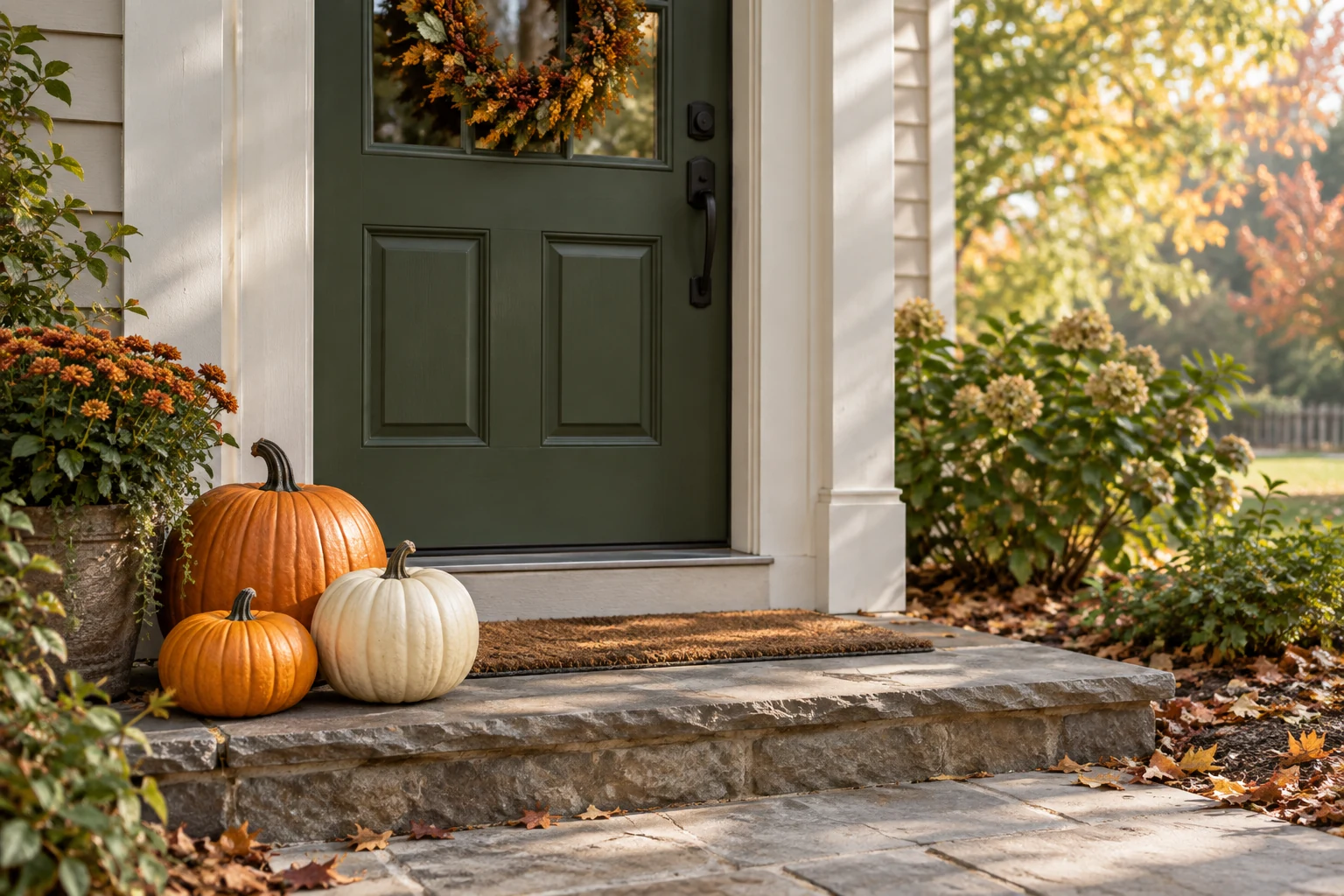
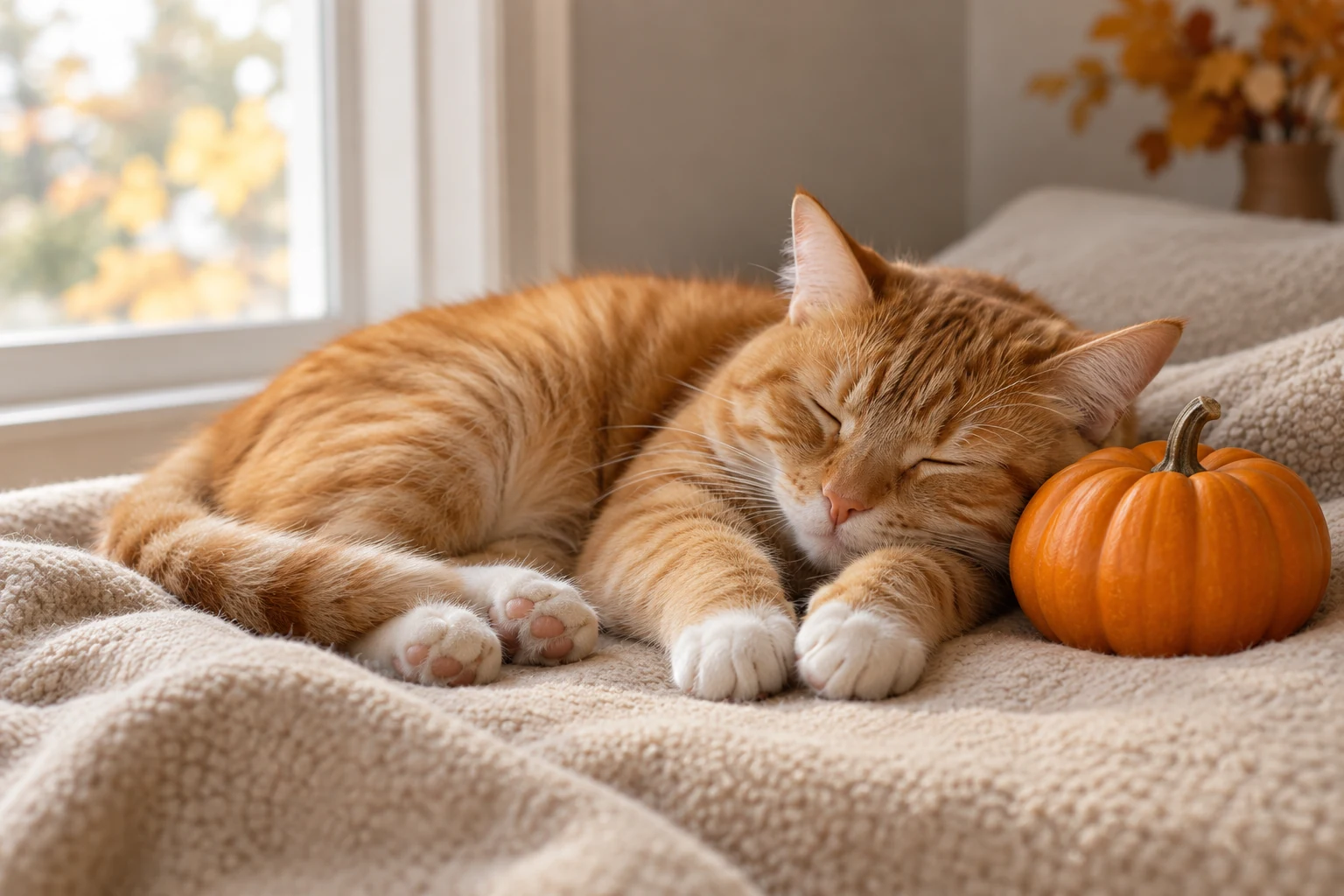
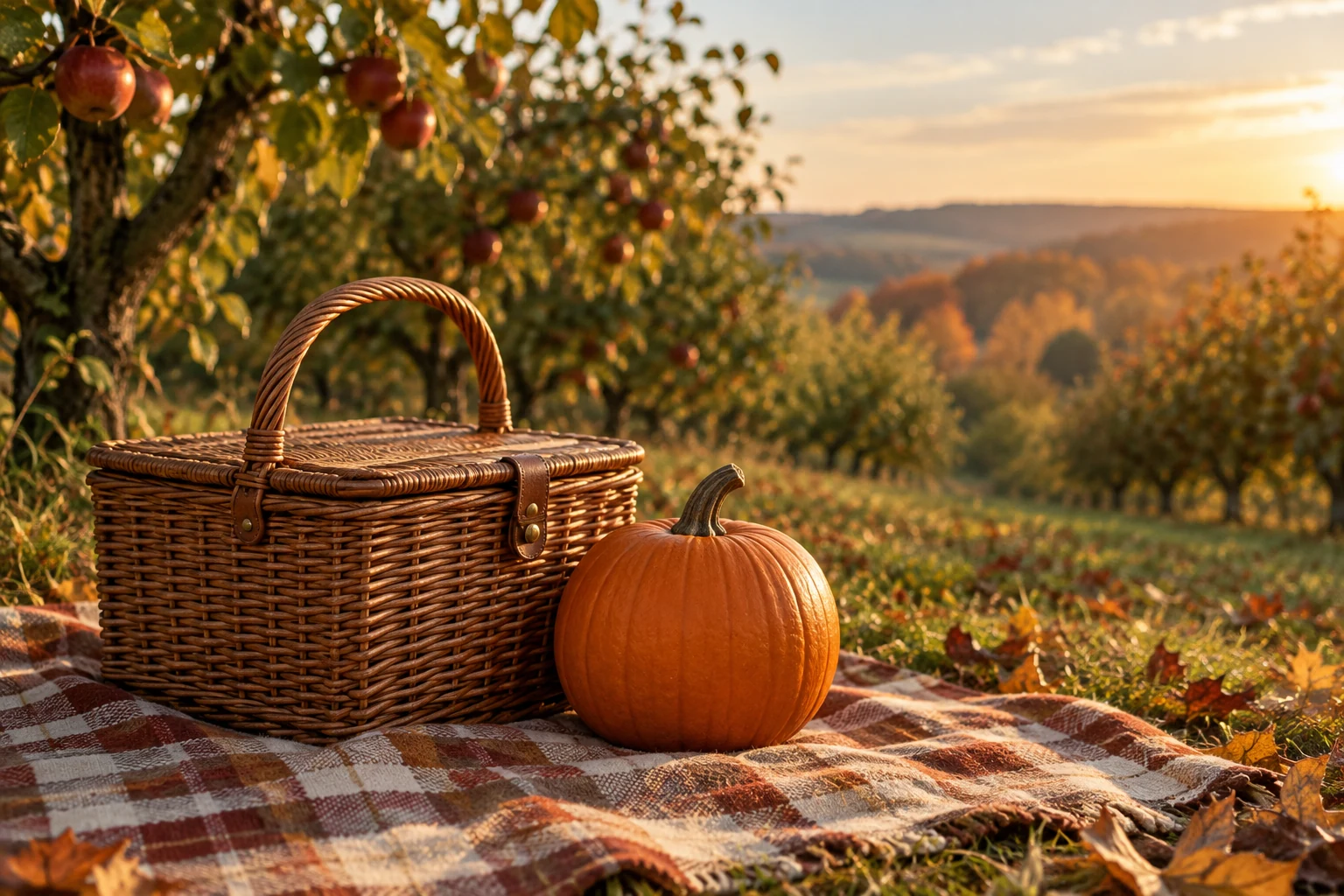
Use an uploaded image and an editable prompt to guide where the pumpkin should appear and how it should fit the existing scene.
Create a new scene in text mode without an upload, describing the subjects, setting, pumpkin placement, light, and framing.
Select from the available models and review the live credit quote for your chosen generation before you proceed.
Use History to return to your generations, inspect the images, and access available download options.
Yes. Editing requires one uploaded image. If you want a new scene rather than an edit, use text mode and describe it without uploading.
Edit mode works from an uploaded image and a prompt describing the change. Text mode creates a new image from a written scene description without an upload.
Exact preservation is not guaranteed. Describe the details that matter, such as a product label or subject, and inspect the generated result before using it.
The live credit quote shows the credits for your selected model and generation. Pricing or any free allowance may depend on the current site terms and account; check the information shown in HeyPix rather than assuming a set amount.
Generation time can vary, so a fixed wait time cannot be promised. Check History for the status and completed result.
Open the completed result from History and use the download option available for that image.
heypix.io · Updated