AI Long Hair Filter: A First Walkthrough on heypix.io
Try the AI Long Hair Filter on a portrait
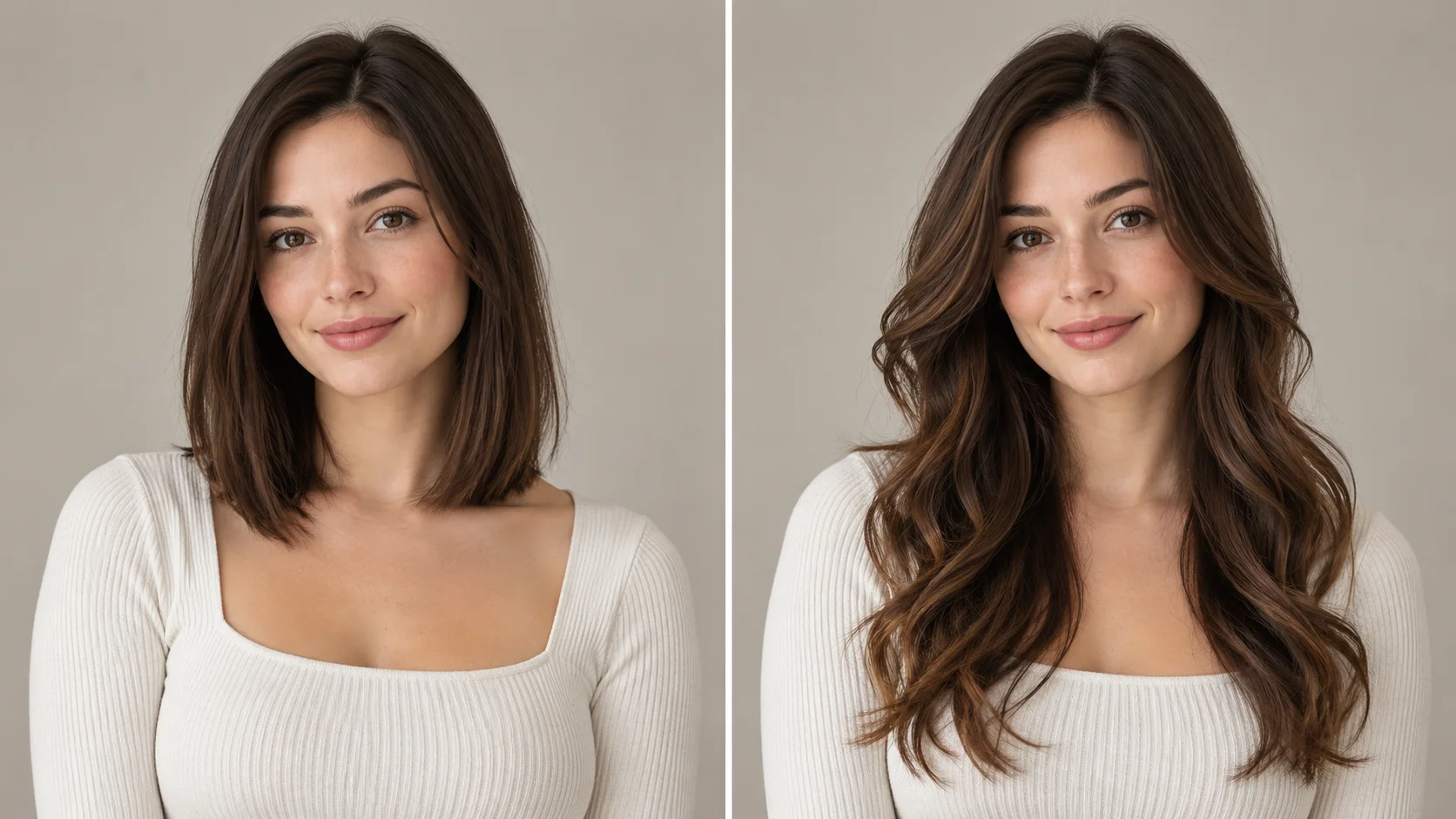
A stable portrait becomes a longer-hair concept with a clearly specified endpoint.
History
Your first questions, answered
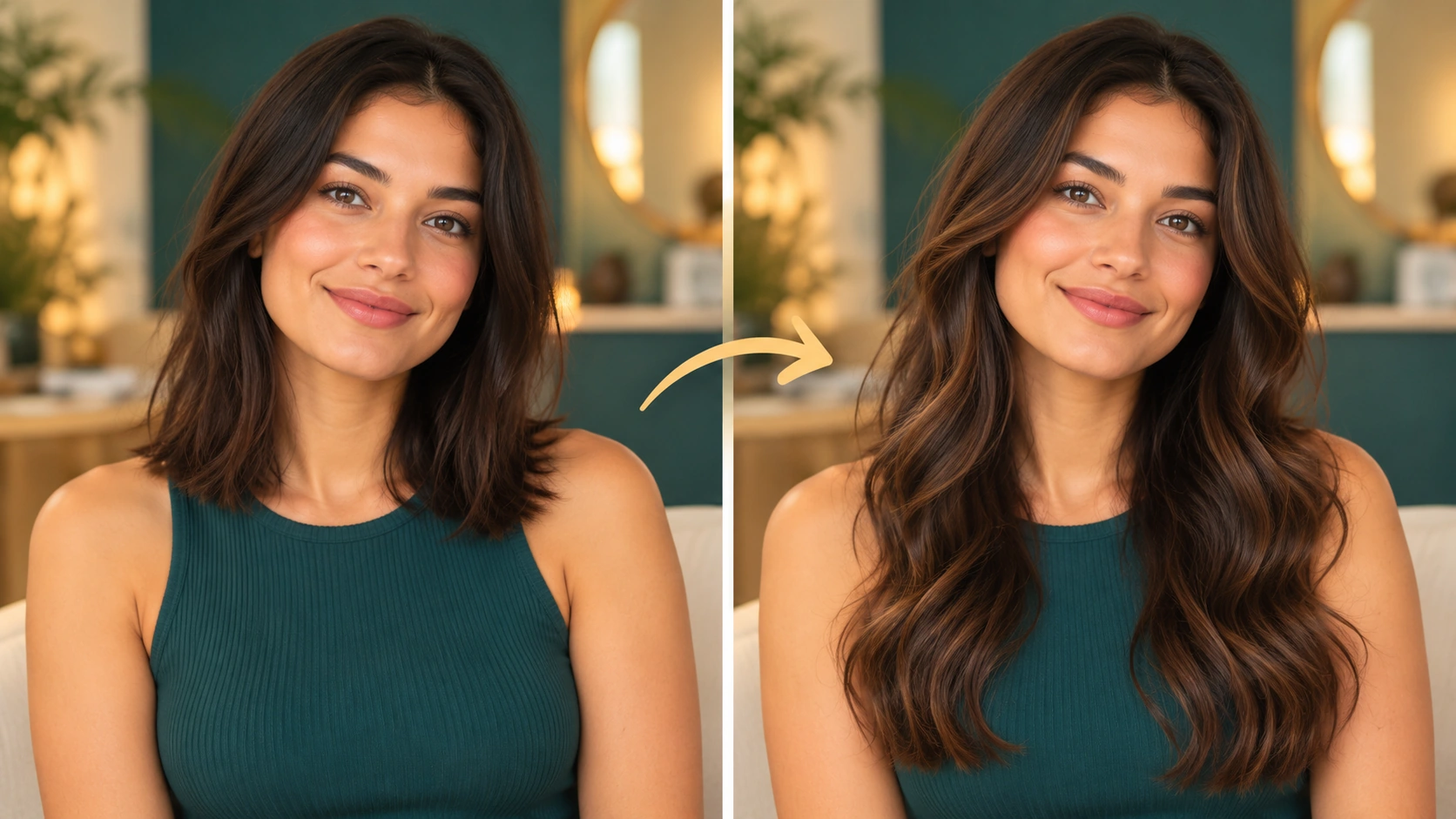
What will I create? See how a longer hairstyle could sit around your face and shoulders. HeyPix uses your portrait as the starting point while your description sets the target length, layers and texture of the new hair concept.
What is the first step? Use Image to Image when your own photograph should guide the result. If you begin in Text to Image, describe the subject from scratch and leave reference uploads out of that request.
What makes a useful input? Choose a photograph with room around the sides and below the shoulders. A tight face crop leaves little context for chest-length hair. Use a clear original photo with the current hairline visible.
Is there a free way to begin? Start by preparing the image and brief. Generation follows the credit quote shown for your selected model and settings; any free-credit eligibility or current promotion is shown by the account or checkout flow.
Where is the price shown? The generator calculates the current credit requirement from the selected model and settings. Review that value before submitting; the page heading is not a separate fixed-price offer.
How do I follow the wait? History shows the task’s current status after you submit. Completion depends on the active model, chosen output and queue; return to the existing task instead of repeatedly submitting the same idea.
See how a longer hairstyle could sit around your face and shoulders. HeyPix uses your portrait as the starting point while your description sets the target length, layers and texture of the new hair concept. The generator keeps the image, description and available model settings together so you can build a focused first version.
A stable portrait becomes a longer-hair concept with a clearly specified endpoint.
1
Upload a clear portrait
Start with one adult portrait. Use a photo where the hair is visible and the face is not covered by hands, hats, or heavy shadow. A front or slight three-quarter view gives the model more to work with. Check that the clothes and background are the ones you want preserved, because the edit should keep them.
2
Write the length and texture
Use the editable prompt to state length relative to the shoulders. Try shoulder length, chest length, or waist length, then add layers or choose waves versus straight texture. Keep the rest of the instruction simple. The model controls let you adjust how the generation is directed without changing the original scene.
3
Read the quote, generate, check History
Before generating, review the live credit quote shown for the job. Log in to your account so the job can run and be saved. When it finishes, open History to compare the preview with your upload. Look at the hairline, shoulder area, clothing edges, and background before you decide whether to revise the prompt and run another version.
What to look for in the image
Inspect where the hair crosses the shoulders and fabric, whether the roots follow the scalp, and whether the two sides have believable weight and strand direction. Keep the face, roots, original hair color, clothing and lighting in view while judging the change.
Practical ways to use the preview
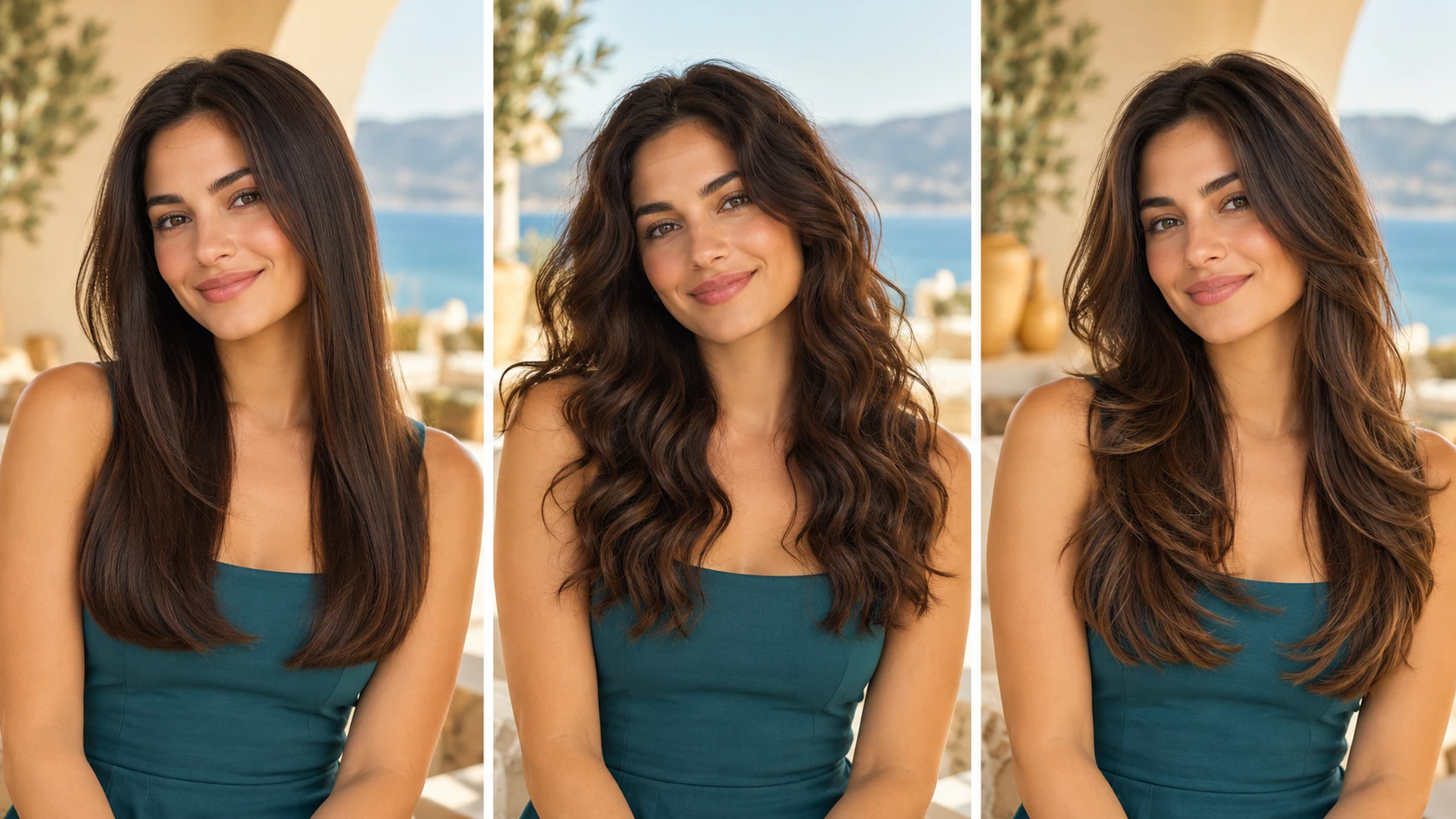
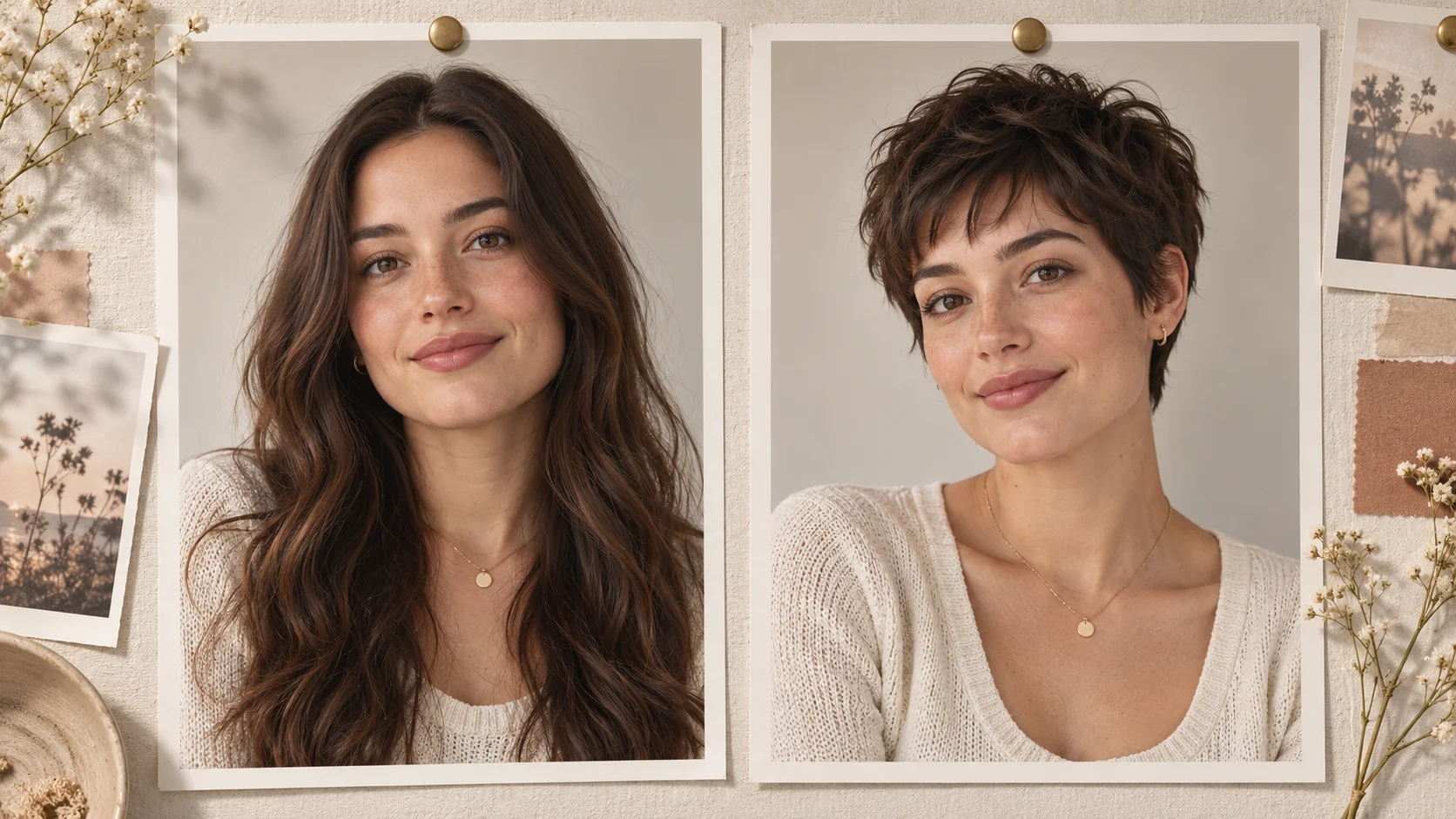
Compare smooth length, loose waves and long layers without changing the face.
Choose a length before a real appointment
Take an adult portrait and preview shoulder versus chest length. Show both versions to a stylist as a visual reference. They are illustrations of an idea, not a prediction of what a salon will produce.
Compare texture on the same photo
Keep the length fixed and change only the texture. Run straight hair, then waves. Seeing the same face and clothes in both versions makes the difference easier to discuss than describing it in words.
Plan a layered shape
Use a waist-length prompt with layers to explore how a longer shape might frame the face. Check the shoulder area and clothing edges in the preview, then adjust the prompt if the layers sit too high or too low.
Before you upload and after you review
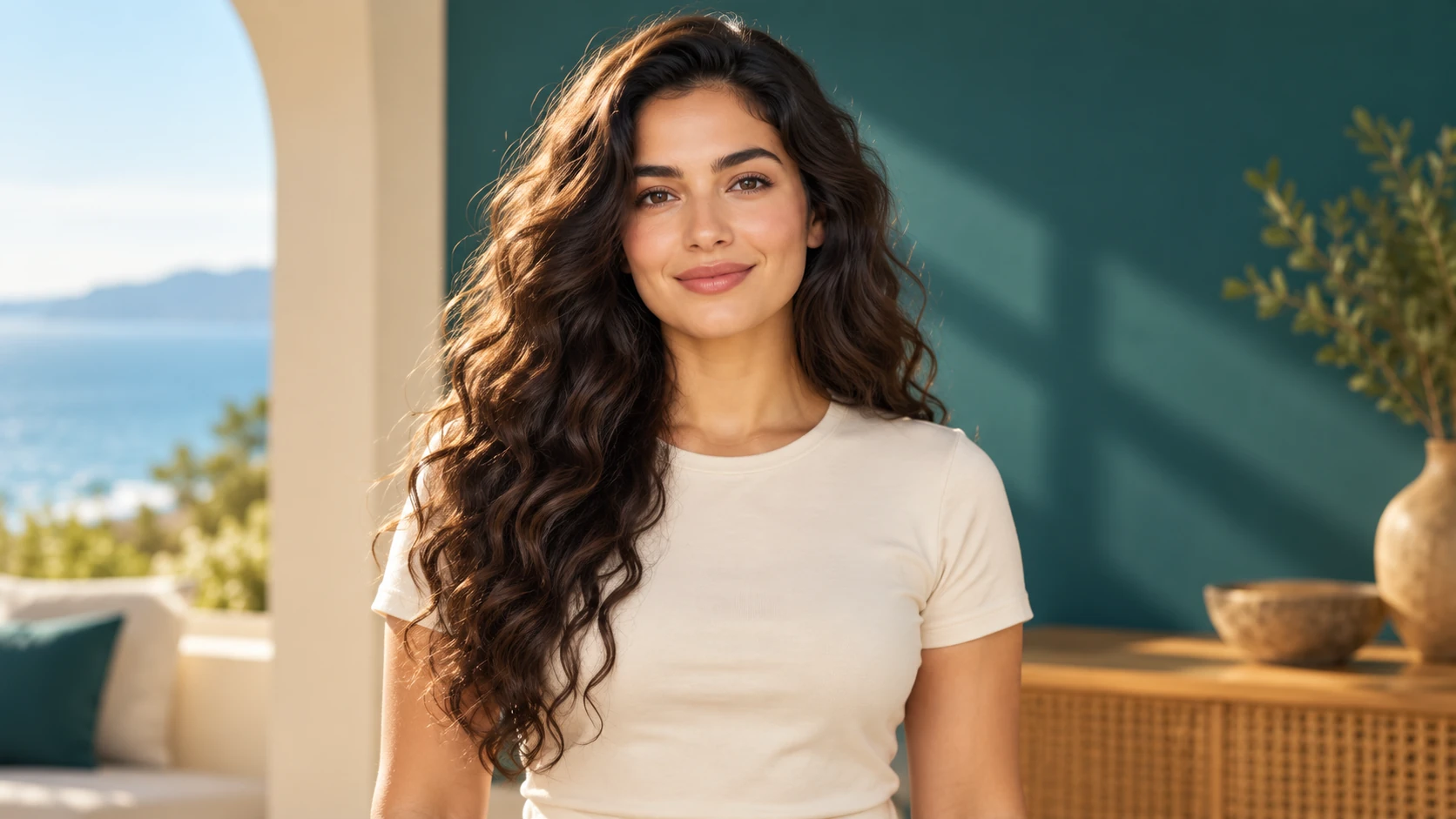
Leave space below the shoulders so the requested length has room in the frame.
Choose a photograph with room around the sides and below the shoulders. A tight face crop leaves little context for chest-length hair. Use a clear original photo with the current hairline visible.
Pick a well-lit portrait where the current hair length is easy to see, and avoid photos where a hat or hand hides the hairline.
Name one length and one texture in the prompt so the result is easy to compare in History.
Review the face, collar, and background at full size before generating another version.
Turn the idea into a clear brief
Before generating, choose one visible change to judge. For ai long hair filter, explicitly retain the face, roots, original hair color, clothing and lighting. Keep the first brief focused so a second attempt can adjust the one detail that needs attention.
Use the face and pose in this portrait. Try long, smooth hair ending just below the chest, with light layers near the cheekbones. Keep the original hair color, clothes, light and background unchanged.
Inspect where the hair crosses the shoulders and fabric, whether the roots follow the scalp, and whether the two sides have believable weight and strand direction. Keep a useful version in History, then change one part of the brief rather than replacing the photo, style and settings at the same time.
Before you run another image
Treat the displayed quote as part of choosing your image, alongside the model and output settings. If you change a setting, read the updated credit requirement before submitting. Use the site’s Pricing page for available purchase options and check any free-credit offer in the account or checkout flow.
A task can spend time waiting and processing before its result appears in History. The model, output choices and current demand influence that wait. Open the existing task to check progress instead of assuming that a slow response requires a duplicate request. Review the result, keep the original reference, and make the next brief more specific if another version is useful.
AI Long Hair Filter questions
What does the AI Long Hair Filter do?
It edits an adult portrait to show longer hair, such as shoulder, chest, or waist length, with layers, waves, or straight texture. It keeps the face, clothes, and background. It is a visual try-on, not physical hair growth or a salon prediction.
What photo should I upload?
Use one clear adult portrait with visible hair and an uncovered face. A front or slight three-quarter view works well. Avoid hats, heavy shadow, and hands over the hairline so the model has enough information to extend the hair naturally.
Can I control length and texture?
Yes. The editable prompt is where you state length relative to the shoulders and choose layers, waves, or straight texture. The model controls adjust how the generation is directed. Keep each attempt to one length and one texture for a clean comparison.
Will the edit change my face or background?
The goal is to keep the face, clothes, and background while changing the hair. Check the hairline, collar area, and background after generation. If something shifts, revise the prompt and run another version, then compare both in History.
How do credits and login work?
You need an account to run jobs and find them in History. A live credit quote appears before generation so you can see the cost for that job.
What should I change for the next attempt?
Start from the same photo and pick one visible detail to improve. Inspect where the hair crosses the shoulders and fabric, whether the roots follow the scalp, and whether the two sides have believable weight and strand direction. Adjust that detail in the brief, keeping the remaining settings steady so the comparison stays useful.
Preview longer hair on your portrait
Upload an adult portrait, name a shoulder, chest, or waist length, review the quote, and generate your first preview.