Photo From Emoji Generator: A Cinematic Guide to Emoji Mosaics
Build a photo emoji mosaic
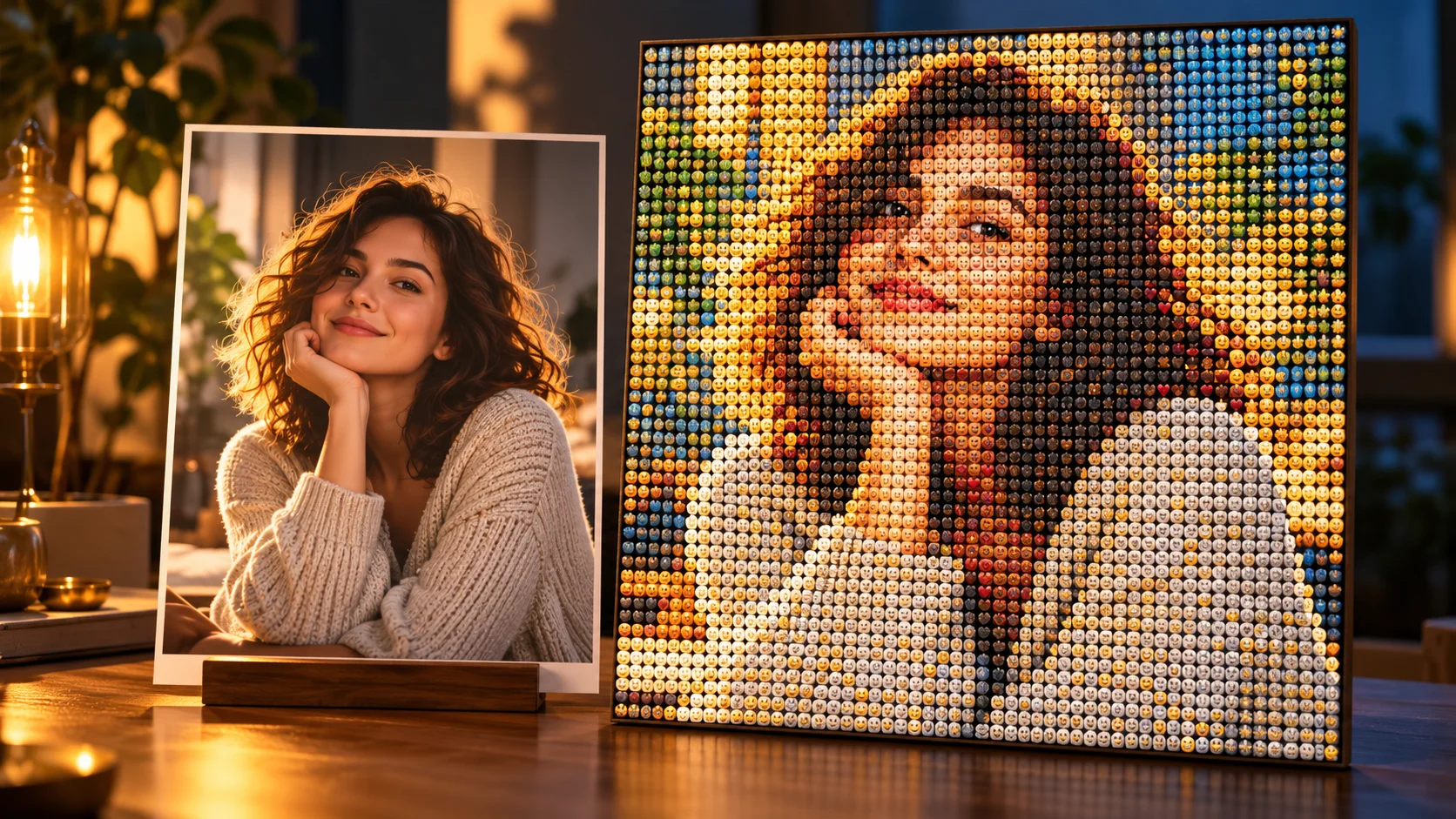
Large shapes in a photograph guide the layout of smaller pictogram tiles.
History
Your first questions, answered
What will I create? Photo From Emoji builds a picture-like mosaic from small emoji-style tiles. Start with a photograph whose broad face, color and silhouette remain recognizable, then describe the tile density and palette you want.
What is the first step? Use Image to Image when your own photograph should guide the result. If you begin in Text to Image, describe the subject from scratch and leave reference uploads out of that request.
What makes a useful input? Choose one photograph with clear separation between subject and background. A large face or simple object reads better than fine details spread across a busy scene. The current photo-reference workflow uses one image.
Is there a free way to begin? Start by preparing the image and brief. Generation follows the credit quote shown for your selected model and settings; any free-credit eligibility or current promotion is shown by the account or checkout flow.
Where is the price shown? The generator calculates the current credit requirement from the selected model and settings. Review that value before submitting; the page heading is not a separate fixed-price offer.
How do I follow the wait? History shows the task’s current status after you submit. Completion depends on the active model, chosen output and queue; return to the existing task instead of repeatedly submitting the same idea.
Photo From Emoji builds a picture-like mosaic from small emoji-style tiles. Start with a photograph whose broad face, color and silhouette remain recognizable, then describe the tile density and palette you want. The generator keeps the image, description and available model settings together so you can build a focused first version.
Large shapes in a photograph guide the layout of smaller pictogram tiles.
1
Upload a clear photograph
Start with a photo whose subject fills a good part of the frame. Tight crops and simple backgrounds give the tiles fewer competing colors to resolve. Check that the face or main shape is readable at a glance, because the mosaic will inherit that structure. Avoid heavy motion blur and busy patterns behind the subject.
2
Direct the emoji rebuild
Write a prompt that describes the mood, color temperature and tile feel you want, then adjust the available model controls. Think like a cinematographer: state the light direction, the contrast and the amount of detail you expect around the silhouette. The prompt guides the treatment, while the uploaded photo remains the reference.
3
Review the quoted job
The page shows a live credit quote for the job before it runs. Log in, start the generation and wait for the job to finish. Open History to compare attempts side by side and decide whether the framing or prompt needs a change before another run.
What to look for in the image
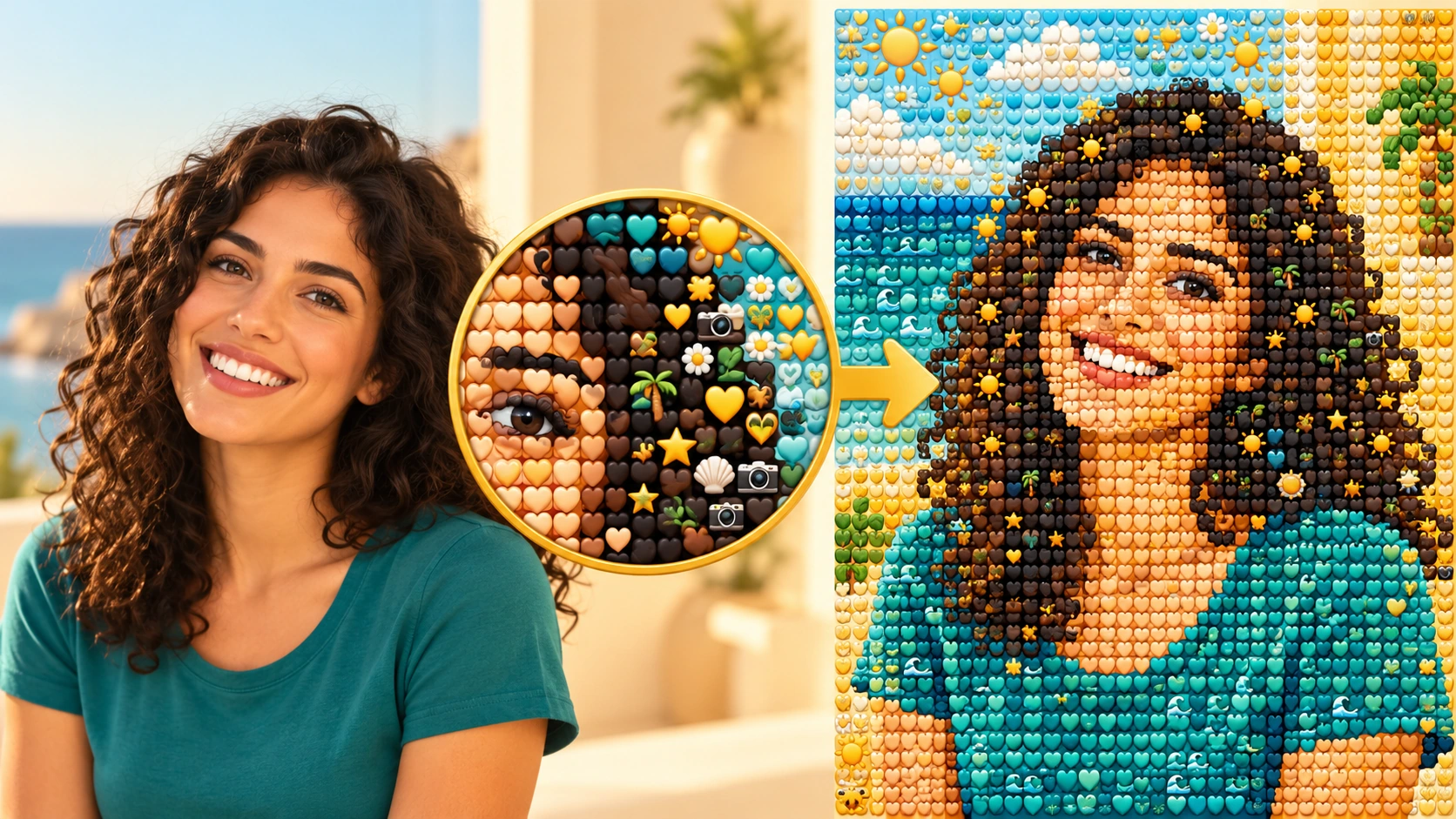
View the whole result at a small size, then inspect a closer crop. The tiles should remain individually visible without losing the broad face shape or turning the subject into visual noise. Keep the source composition, large color regions and the recognizable subject outline in view while judging the change.
Where this look works
An emoji-style mosaic should read both as a portrait and as a field of small tiles.
A portrait poster study
Take a head-and-shoulders portrait with side light, upload it and prompt for warm amber tiles against deep shadow. The mosaic reads as a graphic poster study where the silhouette carries the face.
A band photo for a zine
Shoot three people against a plain wall, then request a cool, high-contrast tile palette. The group shape becomes the anchor, and the emoji grid gives the layout a rough printed texture for a small music zine.
A title card backdrop
Use a wide landscape with one strong vertical subject, such as a lone tree, and prompt for dusk colors. The mosaic makes a textured backdrop for a short film title card, with the horizon kept simple on purpose.
Prepare, then inspect
Clear color regions and a simple subject are useful starting points for a mosaic.
Choose one photograph with clear separation between subject and background. A large face or simple object reads better than fine details spread across a busy scene. The current photo-reference workflow uses one image.
Crop before uploading so the subject occupies roughly half the frame and the mosaic has room to resolve the shape.
Describe lighting and palette in the prompt, then change only one setting between runs so History comparisons stay meaningful.
View the finished mosaic at thumbnail size first; if the silhouette reads there, the tile pattern is doing its job.
Turn the idea into a clear brief
Before generating, choose one visible change to judge. For photo from emoji generator, explicitly retain the source composition, large color regions and the recognizable subject outline. Keep the first brief focused so a second attempt can adjust the one detail that needs attention.
Rebuild this portrait as a coherent mosaic of small cheerful emoji-style pictograms. Keep the dark hair outline, warm face colors and teal shirt readable from a distance. Simplify fine detail and add no extra words or border.
View the whole result at a small size, then inspect a closer crop. The tiles should remain individually visible without losing the broad face shape or turning the subject into visual noise. Keep a useful version in History, then change one part of the brief rather than replacing the photo, style and settings at the same time.
Before you run another image
Treat the displayed quote as part of choosing your image, alongside the model and output settings. If you change a setting, read the updated credit requirement before submitting. Use the site’s Pricing page for available purchase options and check any free-credit offer in the account or checkout flow.
A task can spend time waiting and processing before its result appears in History. The model, output choices and current demand influence that wait. Open the existing task to check progress instead of assuming that a slow response requires a duplicate request. Review the result, keep the original reference, and make the next brief more specific if another version is useful.
Photo From Emoji Generator questions
What does the Photo From Emoji Generator actually do?
It transforms an uploaded photograph into an emoji mosaic, using many tiny emoji tiles to reconstruct broad colors, facial silhouette and subject. It is not extracting an unknown real face from an emoji. Tile precision and detail vary, so results are interpretive rather than exact.
What kind of photo works best as input?
Choose a clear image with a readable subject, modest background clutter and decent contrast. Tight framing helps the silhouette survive the tile grid. Very dark, blurry or crowded photos give the mosaic less structure to follow, and small details will simplify further.
Can I control the look of the emoji tiles?
Yes, within the available model controls and an editable prompt. Describe palette, contrast and mood, then compare runs in History. The prompt shapes the treatment while the uploaded photo remains the reference, so direction works best when it stays specific and consistent.
How accurate is the likeness?
The mosaic favors broad color and silhouette over fine detail. Eyes, hair edges and small accessories may reduce to a few tiles. Treat the result as a stylized reconstruction and review it at normal viewing distance, where the overall shape matters more than individual symbols.
Is there a free allowance, and how are credits shown?
No free allowance is promised on this page. A live credit quote appears for each job before you generate, and account login is required to run jobs and keep them in History. Check the quote shown for your own job rather than relying on any estimate elsewhere.
What should I change for the next attempt?
Start from the same photo and pick one visible detail to improve. View the whole result at a small size, then inspect a closer crop. The tiles should remain individually visible without losing the broad face shape or turning the subject into visual noise. Adjust that detail in the brief, keeping the remaining settings steady so the comparison stays useful.
Direct your first emoji mosaic
Upload a well-framed photo, describe the light and palette, then review the quote before generating.