AI Short Hair Filter: A First Walkthrough From Photo to Short Cut
Try the AI Short Hair Filter on a portrait
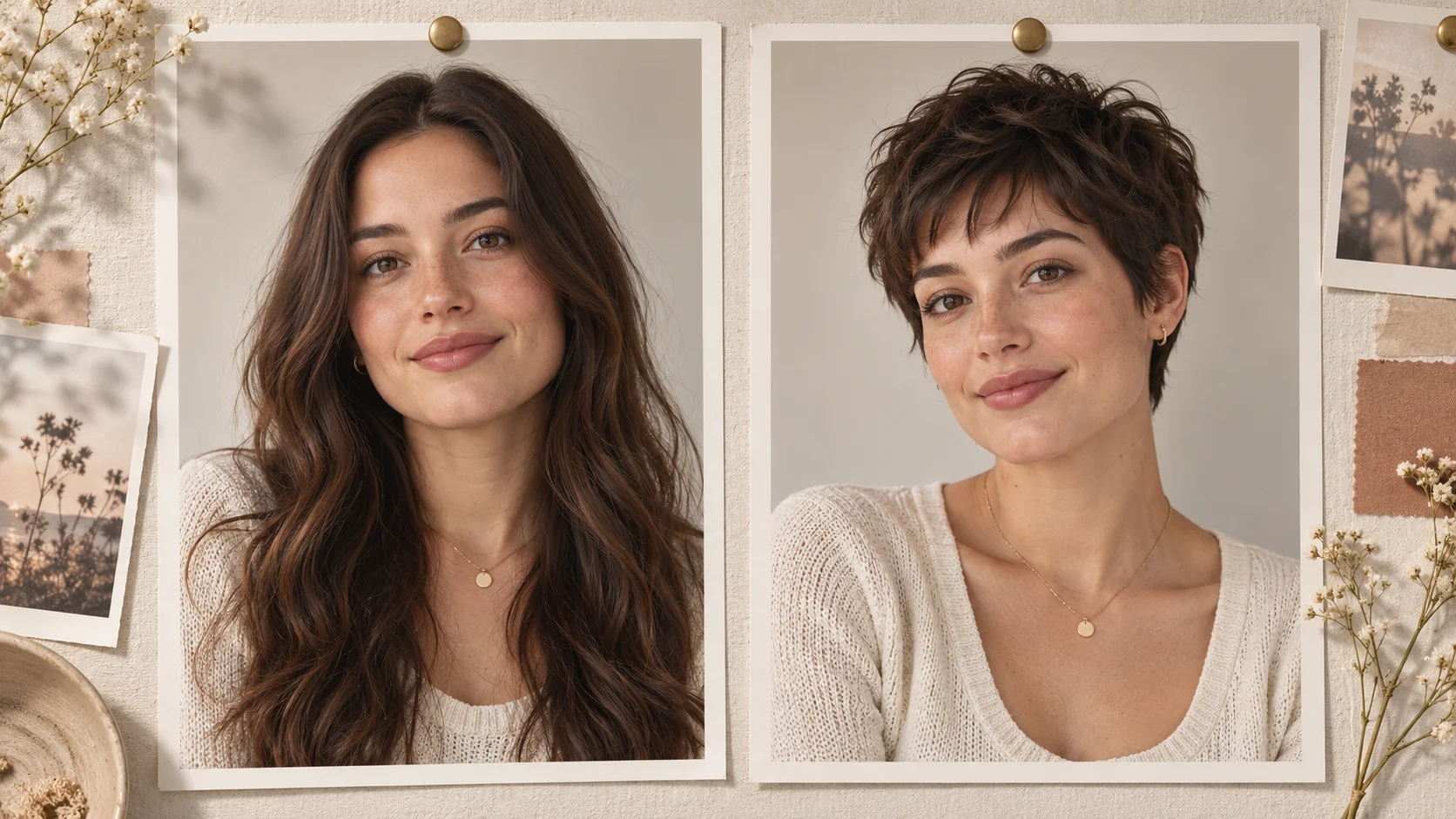
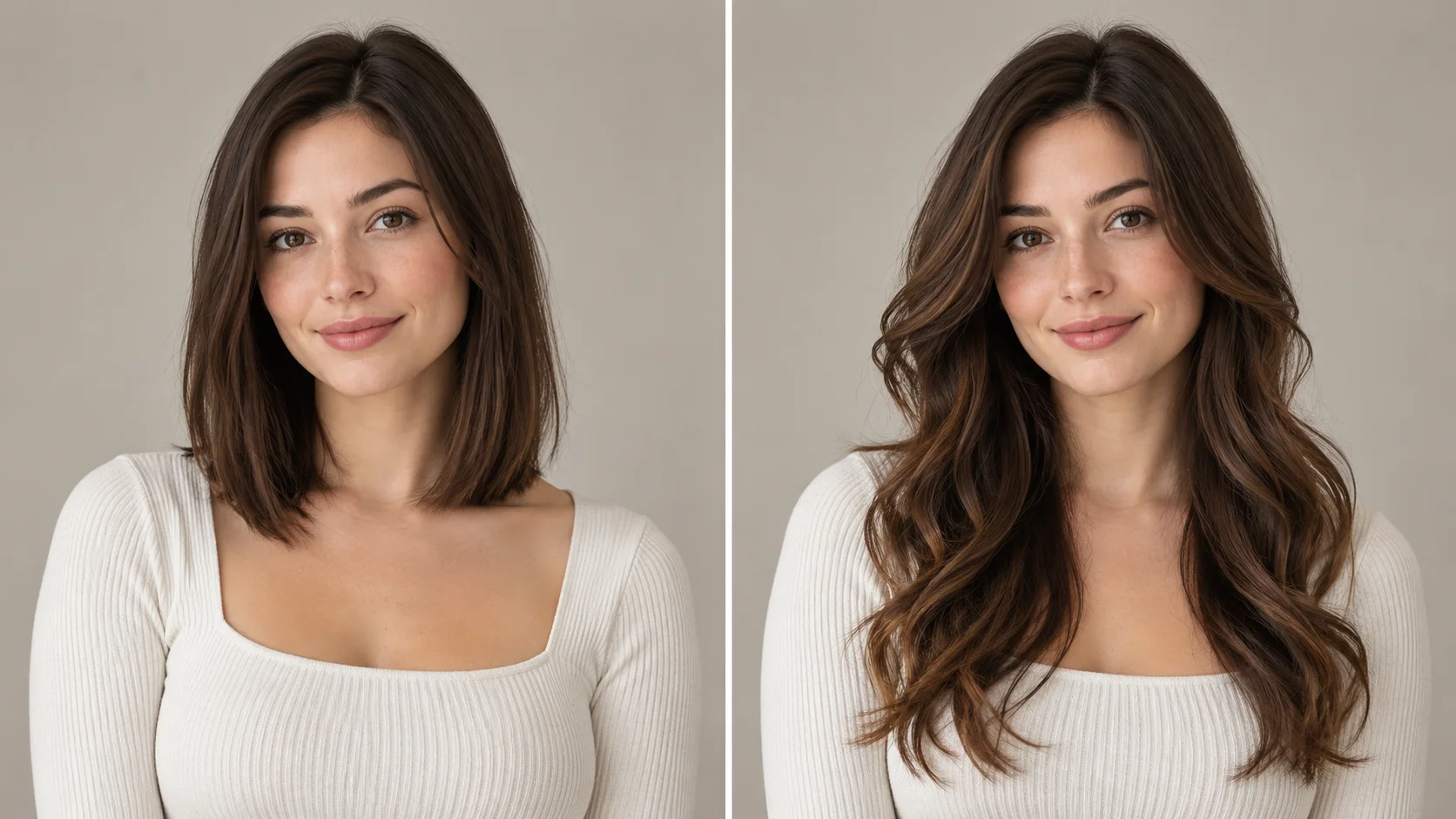
One reference portrait and a precise short-cut description establish the comparison.
History
Your first questions, answered
What will I create? A short haircut changes how the ears, jaw and neck appear in a portrait. Use this filter to compare one specific short shape with your current look, keeping the rest of the photograph steady.
What is the first step? Use Image to Image when your own photograph should guide the result. If you begin in Text to Image, describe the subject from scratch and leave reference uploads out of that request.
What makes a useful input? Upload a clear photo that includes the top of the head and both sides of the jaw. Hair can cover part of the ears in the source, but the surrounding outline should remain readable. Soft light is easier to compare.
Is there a free way to begin? Start by preparing the image and brief. Generation follows the credit quote shown for your selected model and settings; any free-credit eligibility or current promotion is shown by the account or checkout flow.
Where is the price shown? The generator calculates the current credit requirement from the selected model and settings. Review that value before submitting; the page heading is not a separate fixed-price offer.
How do I follow the wait? History shows the task’s current status after you submit. Completion depends on the active model, chosen output and queue; return to the existing task instead of repeatedly submitting the same idea.
A short haircut changes how the ears, jaw and neck appear in a portrait. Use this filter to compare one specific short shape with your current look, keeping the rest of the photograph steady. The generator keeps the image, description and available model settings together so you can build a focused first version.
One reference portrait and a precise short-cut description establish the comparison.
1
Upload a clear portrait
Start with a well-lit adult portrait where the face is easy to see. A front-facing or slight three-quarter angle works best. Avoid heavy filters, sunglasses and busy patterns near the head. Check that you have the right to edit the photo, then upload it as your reference for the try-on.
2
Describe the cut and set direction
Write a prompt naming the cut: pixie, bob, cropped fringe or a textured short style. Say what should stay the same, such as face, background and hair color. Use the model controls to shape the result. Edit the prompt between attempts rather than piling on vague instructions, and keep each change easy to compare.
3
Check the quote, then review
Before generating, read the live credit quote shown for your prompt and settings. Sign in to your account to run jobs. Completed generations appear in History, where you can compare versions, revisit a prompt and decide what to adjust. Nothing is charged silently; the quote is visible before you commit to a job.
What to look for in the image
Check the ear nearest the camera, the new neckline and the transition from fringe to forehead. Keep the original portrait beside the result to spot unintended facial changes. Keep face shape, expression, original hair color and the surrounding scene in view while judging the change.
Ways people use a short-hair try-on
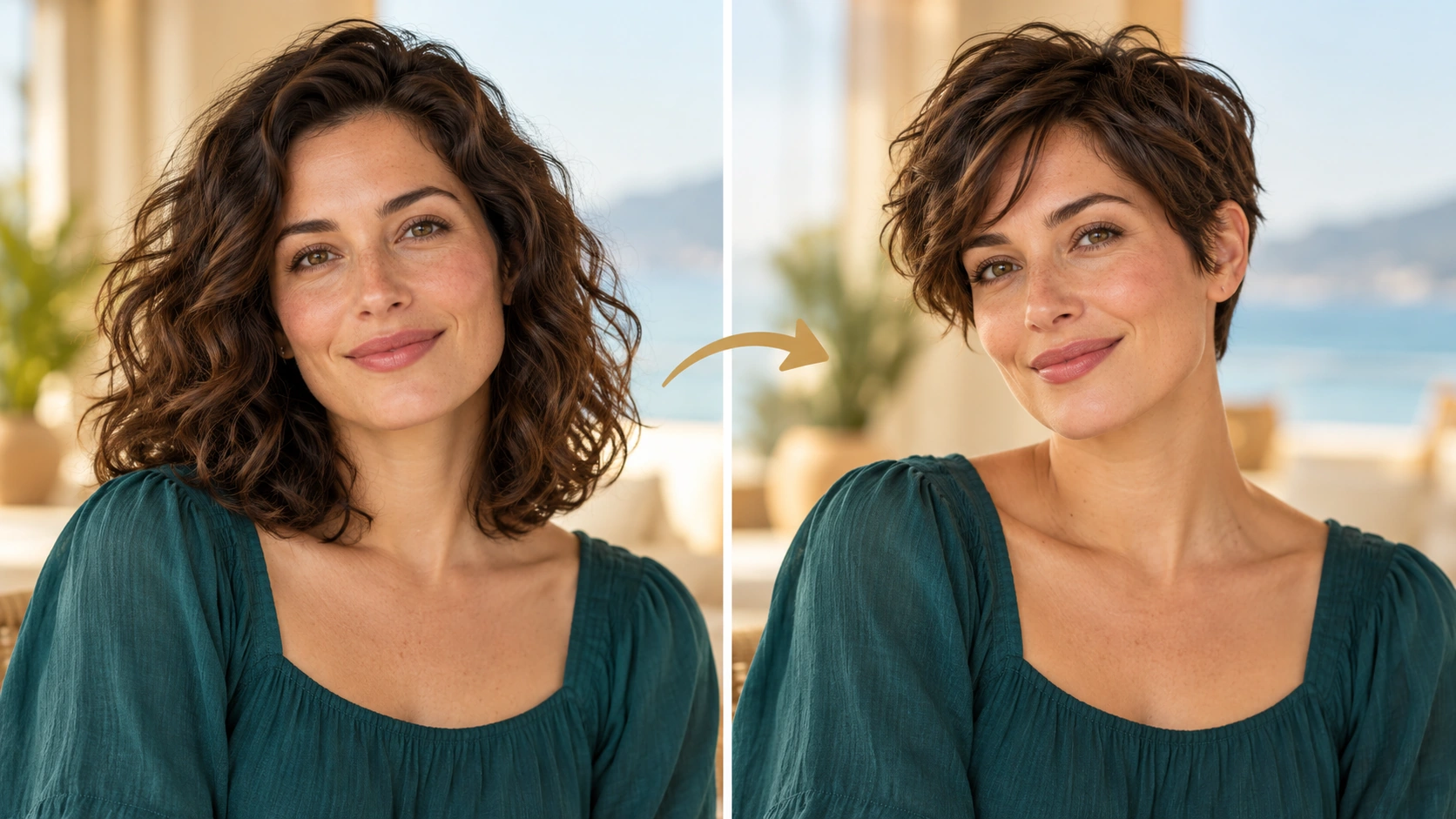
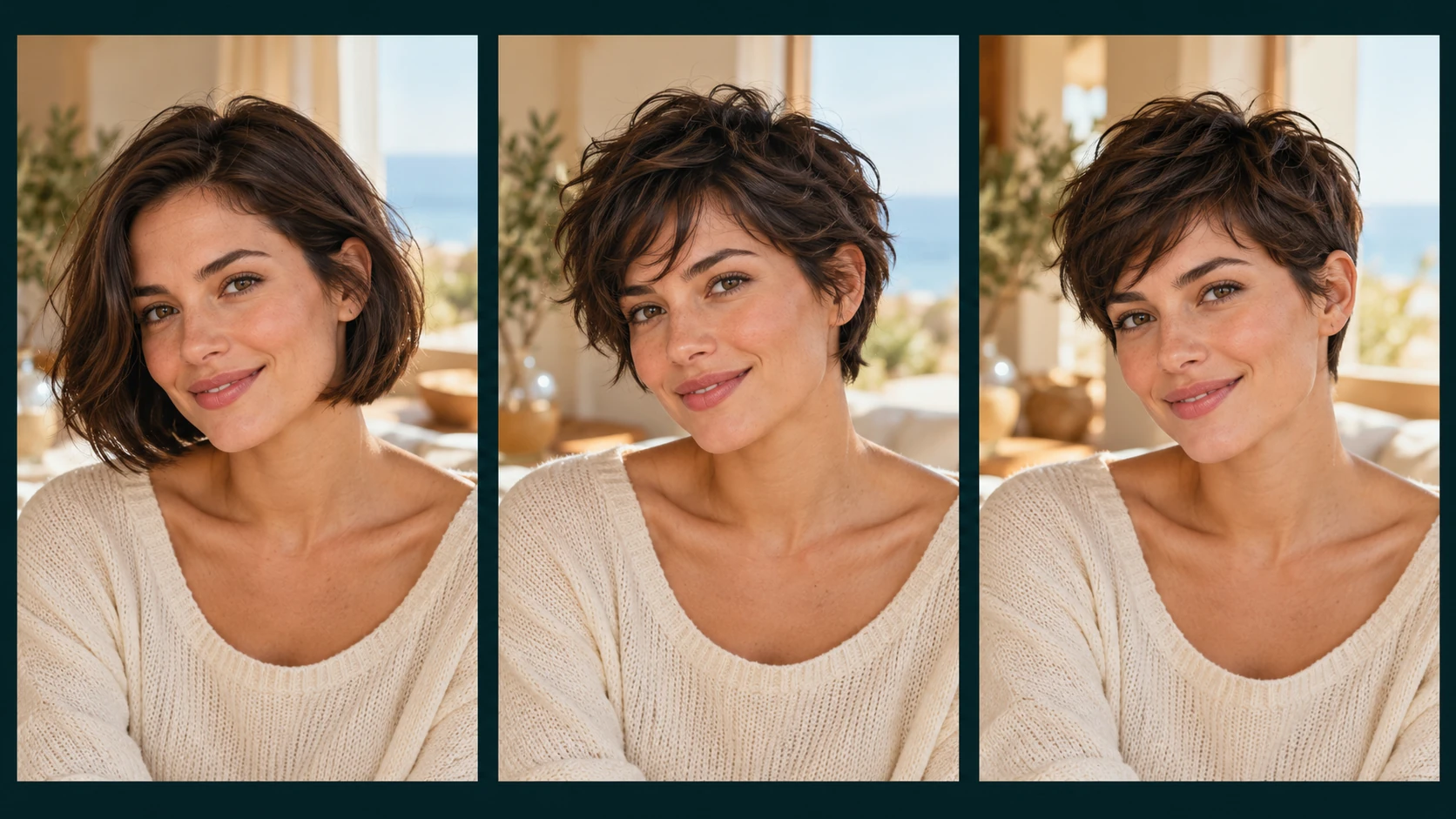
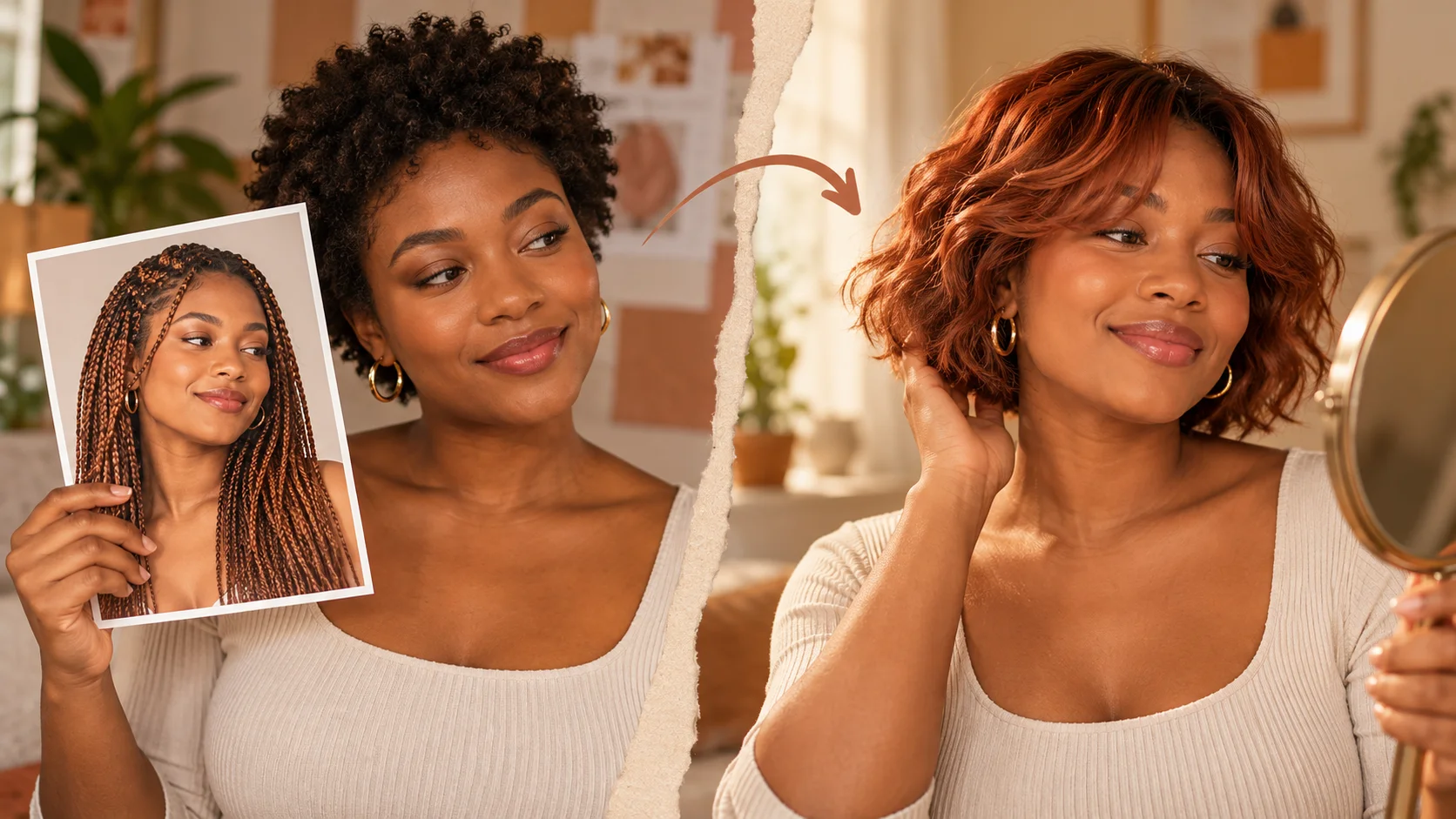
A bob, crop and pixie offer different shapes even when each is described as short.
Before a salon consultation
Bring two or three generated short-cut images to a stylist as visual references. They show direction, not a guaranteed outcome, but they make the conversation about length and shape more concrete.
Deciding between a bob and a pixie
Generate both cuts from the same portrait and compare them side by side. Seeing the two options on your own face and background is often more useful than browsing strangers' photos.
Testing a cropped fringe
If you are unsure how a cropped fringe changes your look, describe it precisely and keep hair color fixed. Review how the fringe sits against your features before deciding whether to book anything.
Getting a more usable first image
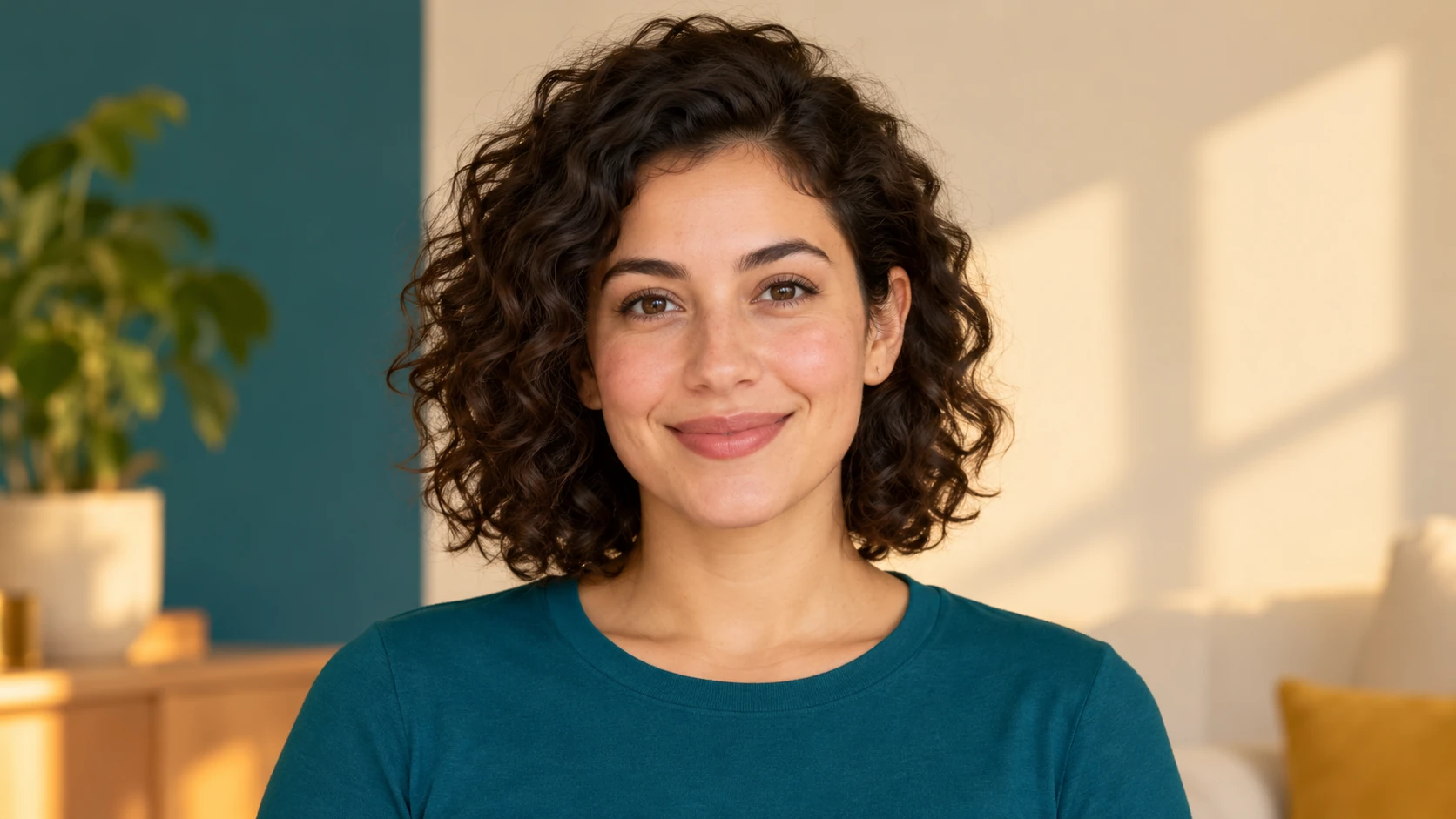
A visible hairline, jaw and upper neck help you judge the shorter outline.
Upload a clear photo that includes the top of the head and both sides of the jaw. Hair can cover part of the ears in the source, but the surrounding outline should remain readable. Soft light is easier to compare.
Use a sharp, evenly lit portrait with the hairline visible and no hat covering the head.
Write one clear sentence naming the cut, then a second sentence listing what to preserve.
Compare results from the same photo so differences come from the prompt, not the input.
Turn the idea into a clear brief
Before generating, choose one visible change to judge. For ai short hair filter, explicitly retain face shape, expression, original hair color and the surrounding scene. Keep the first brief focused so a second attempt can adjust the one detail that needs attention.
Create a neat chin-skimming short bob from this portrait. Preserve my face, expression, hair color and clothing. Keep the ends softly curved, the part natural and the original background in place.
Check the ear nearest the camera, the new neckline and the transition from fringe to forehead. Keep the original portrait beside the result to spot unintended facial changes. Keep a useful version in History, then change one part of the brief rather than replacing the photo, style and settings at the same time.
Before you run another image
Treat the displayed quote as part of choosing your image, alongside the model and output settings. If you change a setting, read the updated credit requirement before submitting. Use the site’s Pricing page for available purchase options and check any free-credit offer in the account or checkout flow.
A task can spend time waiting and processing before its result appears in History. The model, output choices and current demand influence that wait. Open the existing task to check progress instead of assuming that a slow response requires a duplicate request. Review the result, keep the original reference, and make the next brief more specific if another version is useful.
Short hair try-on questions
What is the AI Short Hair Filter for?
It generates a portrait edit showing an adult with a shorter haircut, based on your uploaded photo and written prompt. It is a visual try-on for planning and comparison, not a guaranteed salon result. You review the generated image yourself.
What kind of photo should I upload?
Choose a clear adult portrait with good light and a visible face and hairline. Avoid sunglasses, heavy beauty filters and cluttered backgrounds near the head. A single person in the frame gives the model a cleaner reference to work from.
Can I choose a specific short style?
Yes. Name the cut in your prompt, such as pixie, bob, cropped fringe or textured short cut. Add details about length and finish. Then adjust the prompt and model controls between generations and compare the versions stored in History.
Will my face, background and hair color stay the same?
You can request that preservation in the prompt, and the model will try to follow it. Treat it as a strong instruction rather than a guarantee. Check every result for changes to features, backdrop or color before relying on it.
How does the credit quote work?
The generator displays a live credit quote for your prompt and settings before you run a job. You need an account to log in and generate.
What should I change for the next attempt?
Start from the same photo and pick one visible detail to improve. Check the ear nearest the camera, the new neckline and the transition from fringe to forehead. Keep the original portrait beside the result to spot unintended facial changes. Adjust that detail in the brief, keeping the remaining settings steady so the comparison stays useful.
Create a short-hair try-on from your portrait
Upload one clear adult portrait, describe the pixie, bob or cropped fringe you want, check the credit quote and generate.