AI Sculpture Filter for social posts that start a conversation
Start a sculpture-inspired post from a portrait
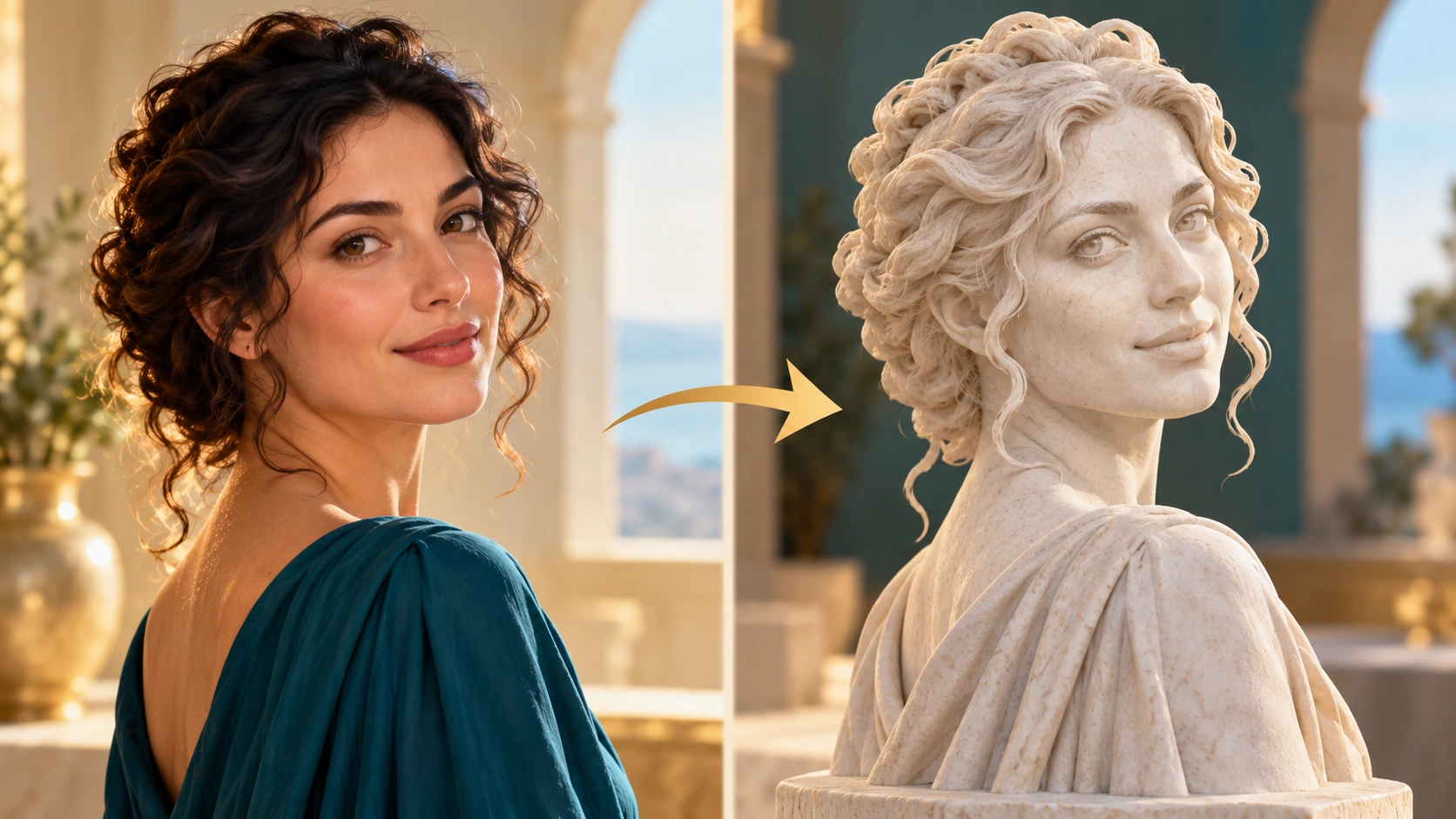
A photographic portrait becomes a material-led sculpture interpretation.
History
Your first questions, answered
What will I create? The AI Sculpture Filter restyles a portrait as a sculpture-inspired image. Pick a material such as marble or bronze and describe how the light should reveal it, while retaining the original pose and facial shape.
What is the first step? Use Image to Image when your own photograph should guide the result. If you begin in Text to Image, describe the subject from scratch and leave reference uploads out of that request.
What makes a useful input? Upload a sharp portrait or clearly defined subject. Even light makes facial planes and clothing outlines easier to preserve. Name the desired material in the prompt rather than uploading a separate texture image.
Is there a free way to begin? Start by preparing the image and brief. Generation follows the credit quote shown for your selected model and settings; any free-credit eligibility or current promotion is shown by the account or checkout flow.
Where is the price shown? The generator calculates the current credit requirement from the selected model and settings. Review that value before submitting; the page heading is not a separate fixed-price offer.
How do I follow the wait? History shows the task’s current status after you submit. Completion depends on the active model, chosen output and queue; return to the existing task instead of repeatedly submitting the same idea.
The AI Sculpture Filter restyles a portrait as a sculpture-inspired image. Pick a material such as marble or bronze and describe how the light should reveal it, while retaining the original pose and facial shape. The generator keeps the image, description and available model settings together so you can build a focused first version.
A photographic portrait becomes a material-led sculpture interpretation.
1
Choose the portrait
Pick one photo with a clear pose and readable silhouette. A single subject usually carries the sculpture idea better than a crowded group shot. Check the framing first, because the prompt can request that the shape and composition stay close to what you started with. Upload the image to the generator.
2
Set the material direction
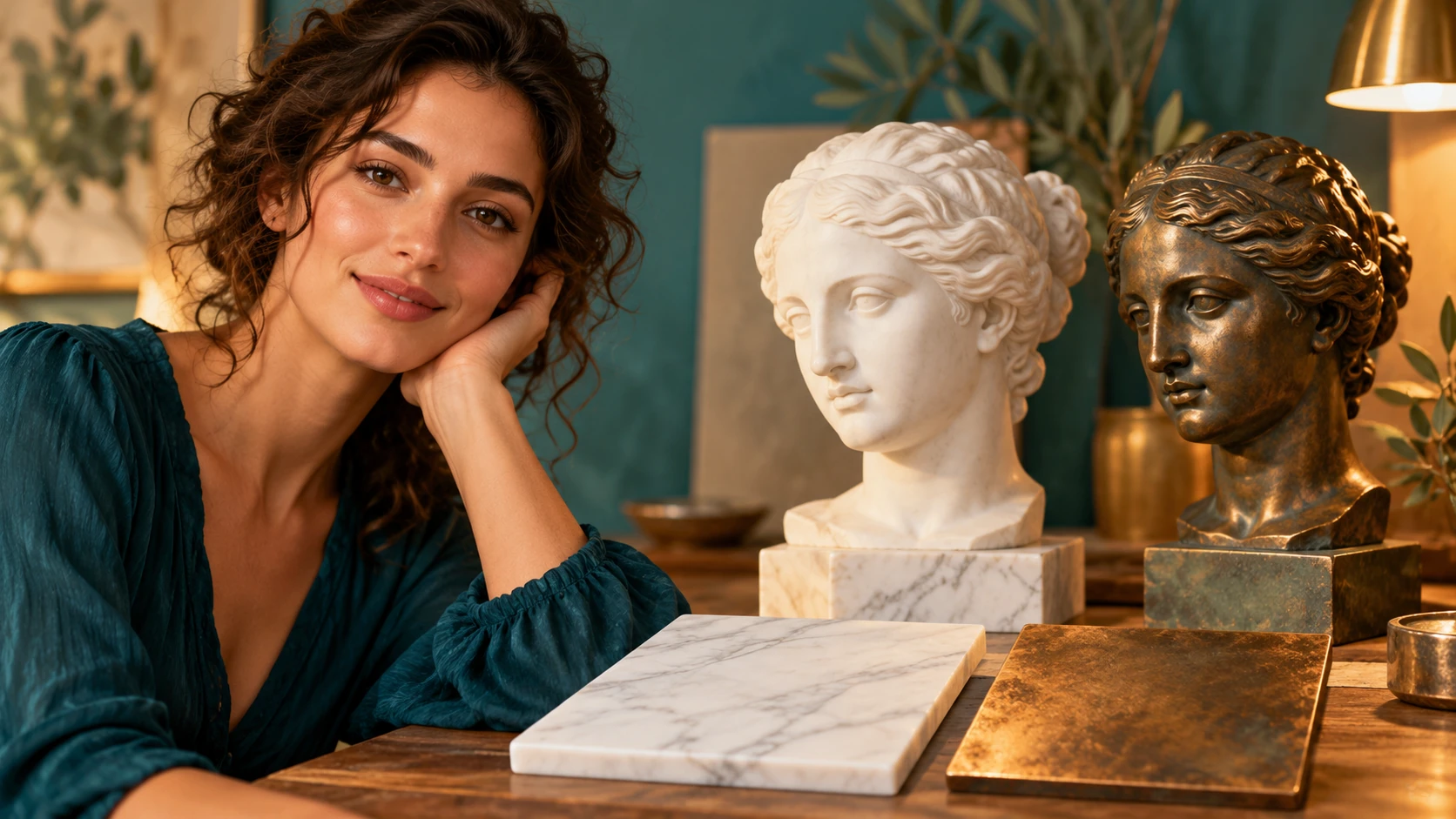
Describe the look you want in the editable prompt, then use the available model controls. White marble reads clean and gallery-like. Patinated bronze adds weight and age. Clay feels soft and unfinished. Carved stone gives texture. Include a pose-retention instruction in the prompt to help keep the subject intact.
3
Generate and review
The live credit quote appears before you commit, and account login keeps jobs together. Run the generation, then open History to compare versions. Reject any result that drifts from the original pose or composition. Save the version you like best for your post and keep the rest as reference.
What to look for in the image
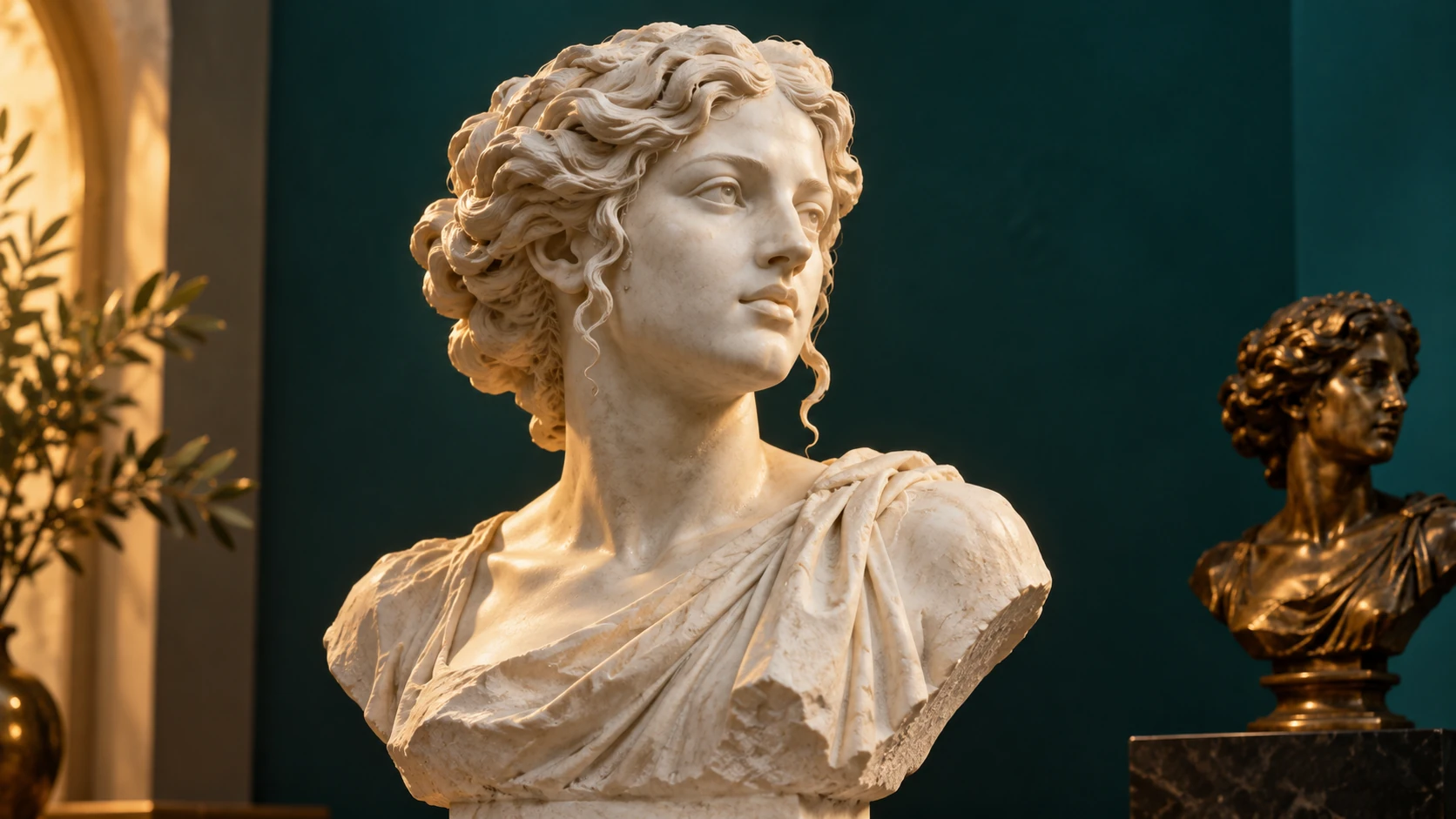
Review the nose, eyes, shoulder outline and material consistency. Stone grain should support the form rather than covering the face with unrelated cracks or patterns. Keep facial proportions, pose, clothing outline and the original composition in view while judging the change.
Three ways to run the concept
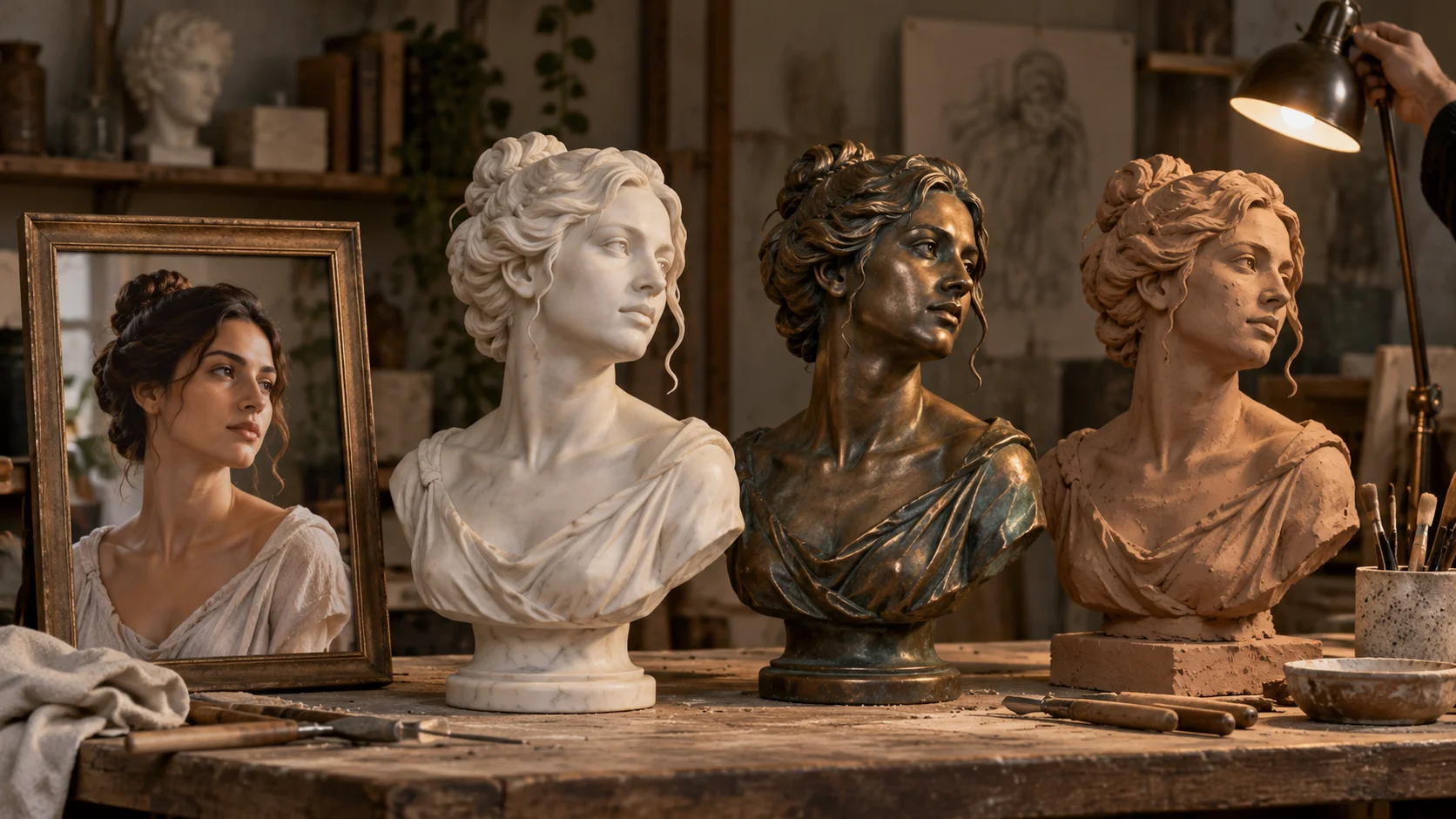
Marble grain, bronze patina and directional light suggest different material moods.
The gallery caption
Post a marble version of a friend's portrait with a mock museum label naming the material and year. The joke lands because the pose is clearly still theirs.
The material swap
Publish the same portrait as white marble and patinated bronze in one carousel. Ask followers which finish suits the subject. The comparison does the work.
The studio desk
Pair a clay version with the original photo and a short note about the imagined commission. Use it for an artist persona or a creative portfolio post.
Before you generate
A clear subject outline and even facial light make useful sculpture references.
Upload a sharp portrait or clearly defined subject. Even light makes facial planes and clothing outlines easier to preserve. Name the desired material in the prompt rather than uploading a separate texture image.
Use a portrait where the silhouette is easy to read, since material detail can hide weak edges.
State the material and the pose-retention instruction in the same prompt so the two goals stay linked.
Compare History versions at the same size to spot drift in composition before you post.
Turn the idea into a clear brief
Before generating, choose one visible change to judge. For ai sculpture filter, explicitly retain facial proportions, pose, clothing outline and the original composition. Keep the first brief focused so a second attempt can adjust the one detail that needs attention.
Keep the pose and facial proportions of this portrait. Restyle it as white marble with fine stone grain and restrained chisel marks. Preserve the clothing silhouette and use soft directional gallery light against a dark teal wall.
Review the nose, eyes, shoulder outline and material consistency. Stone grain should support the form rather than covering the face with unrelated cracks or patterns. Keep a useful version in History, then change one part of the brief rather than replacing the photo, style and settings at the same time.
Before you run another image
Treat the displayed quote as part of choosing your image, alongside the model and output settings. If you change a setting, read the updated credit requirement before submitting. Use the site’s Pricing page for available purchase options and check any free-credit offer in the account or checkout flow.
A task can spend time waiting and processing before its result appears in History. The model, output choices and current demand influence that wait. Open the existing task to check progress instead of assuming that a slow response requires a duplicate request. Review the result, keep the original reference, and make the next brief more specific if another version is useful.
AI Sculpture Filter questions
What does the AI Sculpture Filter do to a portrait?
It uses an editable prompt to turn the uploaded photo into a sculpture-inspired image that can request white marble, patinated bronze, clay or carved stone. The prompt can ask for the subject's pose, shape and composition to stay recognizable while the surface and material language change, though results vary.
Which photo works best as input?
One clear subject with a readable pose and simple background usually works best. Crop distractions before uploading, and avoid images where the silhouette is ambiguous, because sculpture-inspired results depend on a strong outline.
How do I keep the pose and composition?
Name the retention goal in the editable prompt and keep material descriptions secondary. Use the model controls to test variations, then compare each job in History. Reject versions where the stance or framing has shifted, since retention is a prompt request rather than a guarantee.
Is this a 3D model or a physical sculpture?
No. The output is a styled image, not a 3D mesh and not a fabricated object. It is meant for posts, concepts and visual experiments, so treat it as a picture rather than a printable or sculptable asset.
How does the credit quote work?
A live credit quote is shown before generation, so you see the cost for the job you configured. Log in to keep jobs and results together in History.
What should I change for the next attempt?
Start from the same photo and pick one visible detail to improve. Review the nose, eyes, shoulder outline and material consistency. Stone grain should support the form rather than covering the face with unrelated cracks or patterns. Adjust that detail in the brief, keeping the remaining settings steady so the comparison stays useful.
Make the first sculpture-inspired post
Upload one clear portrait, describe the material in the prompt, check the quote and generate.